How Xybernetex works
The short version
- You describe a decision in plain words. The AI drafts the structure and the numbers; you check and correct them; code does all the math.
- The live decision shows which option leads and how sure that is, across 2,000 plausible versions of the future, and updates as you change anything.
- Every number shows where it came from. Claims made by other parties (a vendor's quote, a contractor's timeline) are treated as optimistic until you verify them.
- Every change is a numbered version you can undo. Nothing the AI suggests changes your model until you accept it.
- The Lab asks you one question at a time about where your thinking is thinnest, and can take a decision into a meeting room in full screen.
- When you're ready, you record the decision, have it signed off and sealed, and check in later on how it turned out. The Lab learns from those check-ins.
How Xybernetex works
Xybernetex is built on one rule: AI drafts, you approve, math decides. Each part does the job it's good at.
Behind the answer is a model: the numbers your decision rests on (costs, timelines, chances, scores) and the formulas that combine them for each option. Because most of those numbers are uncertain, the Lab doesn't compute one answer. It computes 2,000. Each plausible world draws every uncertain number from its realistic range, and the Lab counts how often each option comes out best and how often it breaks one of your hard limits.
Two safeguards keep this honest:
- Provenance. Code checks that every number the AI says it found really appears, word for word, in your writing or your documents. If it doesn't, the number is marked untraceable and treated as a guess.
- Survive first, then optimise. An option that breaks a hard limit too often (5% of worlds, by default) isn't chosen, however good its average looks.
Getting started
There are two ways in. Both end up in the same place.
The Wizard: answer a few questions
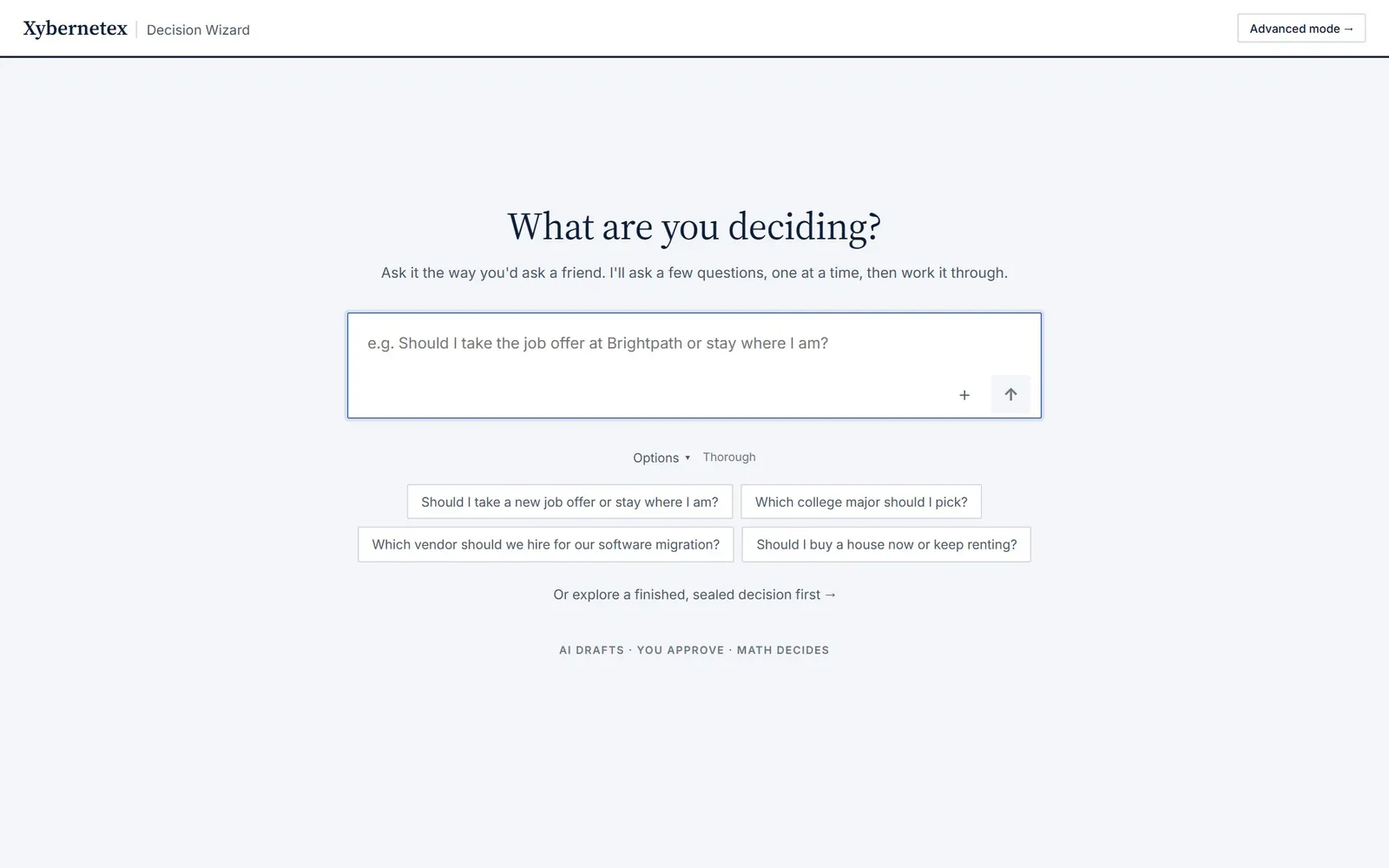
- Type your question, for example “Which vendor should we hire for our software migration?”. Attach any proposals or reports with +; mark each as theirs (another party's claims) or mine.
- Answer one short question per screen: your options, what matters, any hard limits, the numbers you know, your gut lean and what you're least sure about. Anything your question already said is filled in for you to confirm.
- Choose Quick (about a minute: the numbers and a first read) or Thorough (a few minutes, adding the four analysts) under Options.
- Read the result, then Open in advanced mode to keep working on it in the Lab.
The Lab: write it out yourself
Open the Lab and choose + New decision. Write a few paragraphs about the decision: what you're choosing between, what matters, any limits, and what you're unsure about. The Lab reads it as you write.
New here? Try a practice decision. On the Wizard’s first screen, New here? Try a practice decision opens an editable copy of an example (choosing an ERP implementation partner) with a short guide: change one number, answer the question the lab asks, ask the vendor, and open meeting mode. It takes about three minutes and needs nothing set up. Every account also has the same decision finished and sealed (“Or explore a finished, sealed decision first”), with its approvals and audit trail.
Home
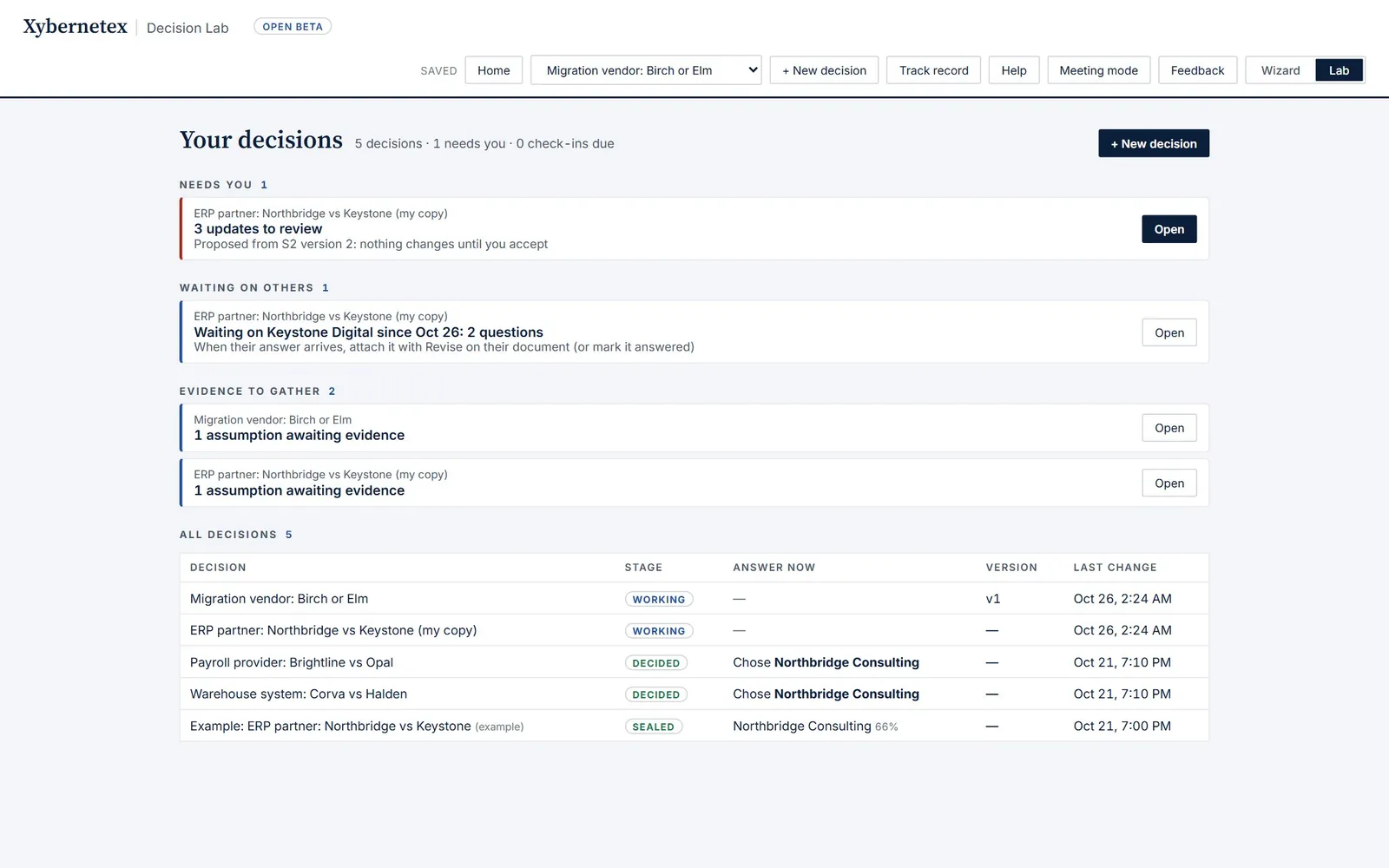
Opening the Lab takes you to Home: every decision you can open, and what each one needs from you. Use the Home button at the top to come back to it at any time.
| Group | What shows up there |
|---|---|
| Needs you | A sign-off requested from you (or your interests to declare first), your scores in an open scoring round, updates proposed from your writing or a revised document, or a decision everyone has signed that's ready to seal. |
| Check-ins due | A recorded decision whose check-in date has come: how did it turn out? |
| Changed since the analysis | The analysts' report was made on an earlier version of the model. |
| Waiting on others | A clarification request you sent a vendor that hasn't been answered yet (see Ask the vendor). |
| Evidence to gather | Assumptions nobody has tested yet, or ones the evidence contradicts (before you've decided). |
| Ready to decide | The analysis is up to date and nothing is recorded yet. |
Below the groups, All decisions lists each one with its stage (forming, working, in review, decided, sealed), its current answer, its version and when it last changed.
Since you were last here
When you come back to a decision after being away for at least half an hour, a short note at the top of the live decision tells you where things stand:

- What changed while you were away, by other people or things outside your control: a teammate signed or declared their interests, a vendor's answer arrived, updates are waiting for you, the analysts' report fell behind, a check-in came due. What you did yourself isn't listed.
- Still waiting: requests you've sent that haven't been answered, and for how long.
- Last time you: your last few changes, so you can remember where your head was.
- Pick up where you left off: the open question, with answer it.
Close it with ×. Opening a decision doesn't count as changing it, so Last change on Home stays accurate.
The Lab at a glance
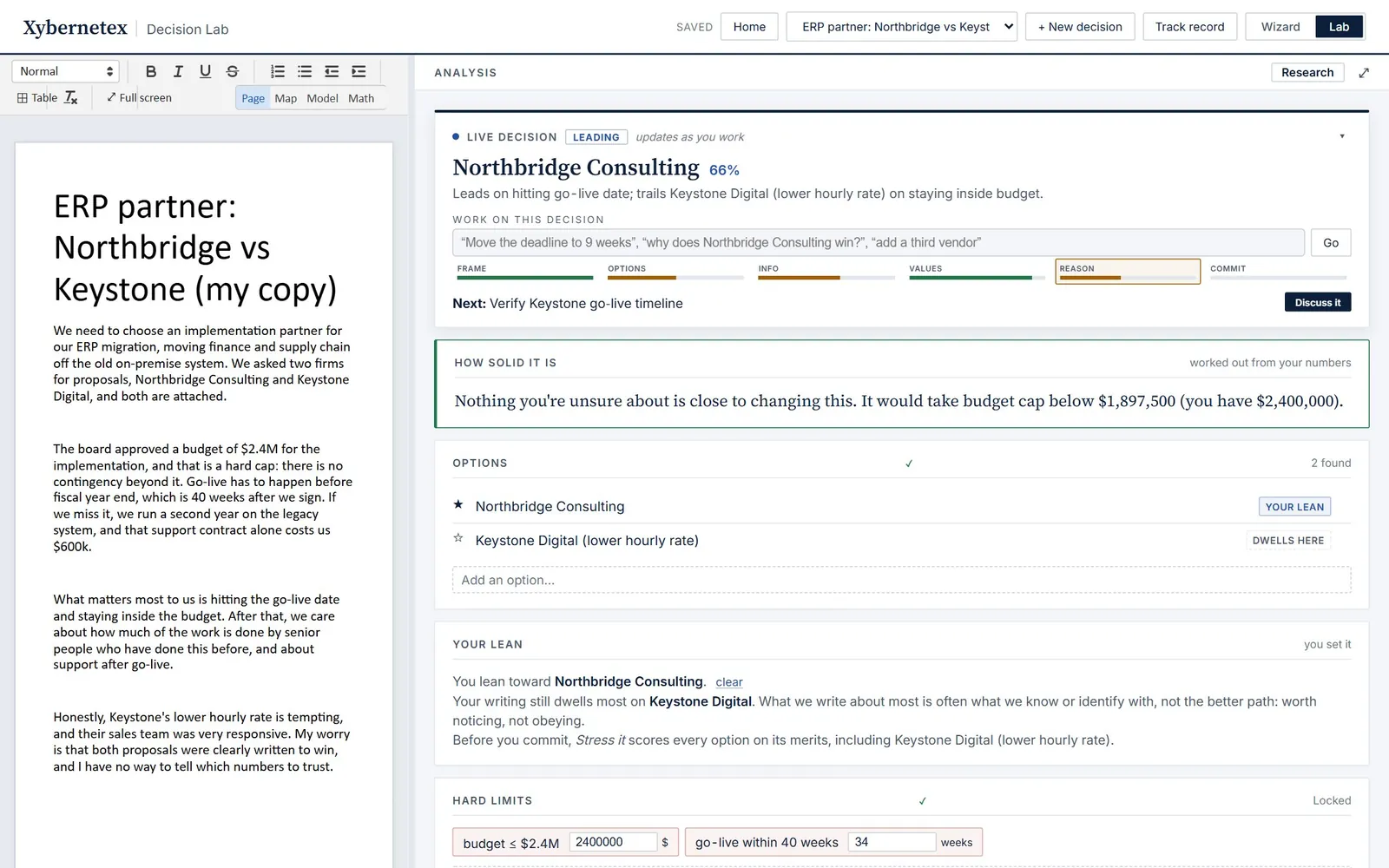
- Left: your writing. A normal document with headings, lists and tables. It saves automatically. Below it are your Sources: documents you've attached.
- Right: the analysis. Cards that build up as your decision takes shape, starting with the live decision. Tools appear as they become useful; Show everything at the bottom reveals them all at once.
- Views. Page, Map, Model and Math switch what the left side shows (see Map, Model and Math).
- Layout. Drag the divider to resize the two sides; double-click it to reset. ⤢ Full screen gives either side the whole window, and Esc brings the split back.
- At the top: Home, the decision picker, Track record, Help (this page), Meeting mode and Feedback.
Writing your decision
As you write, the Lab picks out the structure of your decision and shows it in cards on the right. Everything it finds can be corrected.

- Options: what you're choosing between. Click ☆ to mark your lean (what you'd pick today), × to dismiss one, or type in Add an option…. The Lab may suggest one you haven't considered, which you can add, combine with an existing option, or dismiss.
- Hard limits: lines you won't cross, such as “budget ≤ $2.4M” or “go-live within 40 weeks”. Once there are numbers, each limit shows the figure it's tested against, which you can change to try a what-if.
- What matters: your criteria. Click one to cycle between normal, matters a lot ▲ and matters a little ▼.
- Assumptions: what you're taking for granted (see Assumptions).

When the Lab can analyse it. A decision needs a description (about 50 words), at least two options and at least two things that matter. Hard limits and assumptions are recommended. Tags on each card show what's still missing. Once the decision is formed, the numbers are built automatically.
Your lean vs. your writing. What you say you lean toward and what your writing dwells on can differ. The Lab shows both, because what we write most about is often what we know best, not the better path.
The live decision
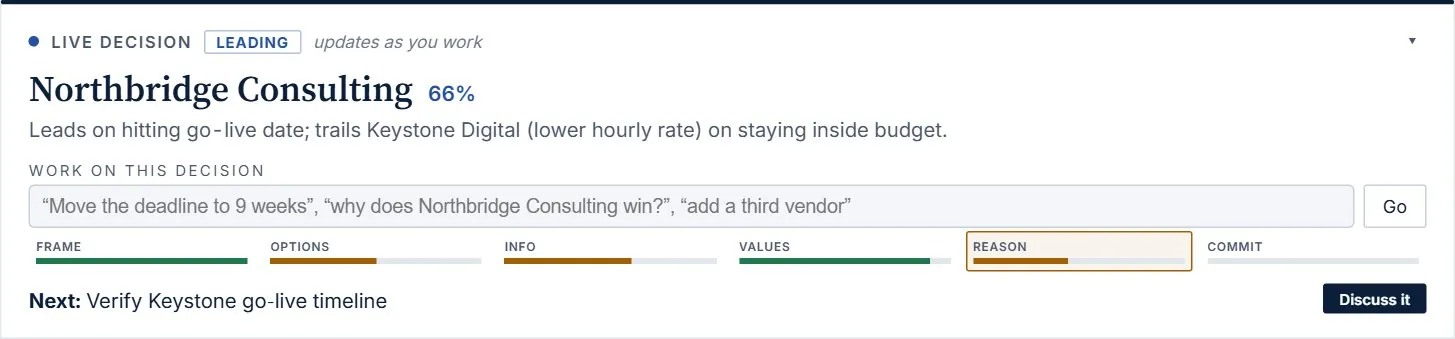
The card at the top of the analysis is always current. It shows:
- The leading option and the share of plausible worlds in which it's best. If no option passes your hard limits, it says so. If two options come out exactly level, it says it's a tie instead of picking one.
- A one-line reason, e.g. “Leads on hitting go-live date; trails Keystone on staying inside budget.”
- What your last change did, in three lines: what changed, what that did to each option against your limits, and what to do next. Undo puts it back.
- Decision quality: a six-part bar (Frame, Options, Info, Values, Reason, Commit). A decision is only as strong as its weakest link; the weakest one is highlighted.
- Next: the single most useful thing to do now, chosen by code, with a button to do it.
- A question for you: see One question at a time.
- Argue the other side: a link beside the answer (see Argue the other side).
- Predict first: a switch in the card's header (see Predict, then see).
Directly below it, What would change your mind (or How solid it is, when nothing plausible would) names the number closest to flipping the answer. Use That number's wrong to talk it through, or Check it to research it.

One question at a time
Under the answer, the Lab asks the single question most worth thinking about now, chosen by code from what your decision is missing or most sensitive to, with the reason underneath. Answer it in a sentence or a click, and the answer lands where it belongs; then the next question comes.

| When | The question | Your answer |
|---|---|---|
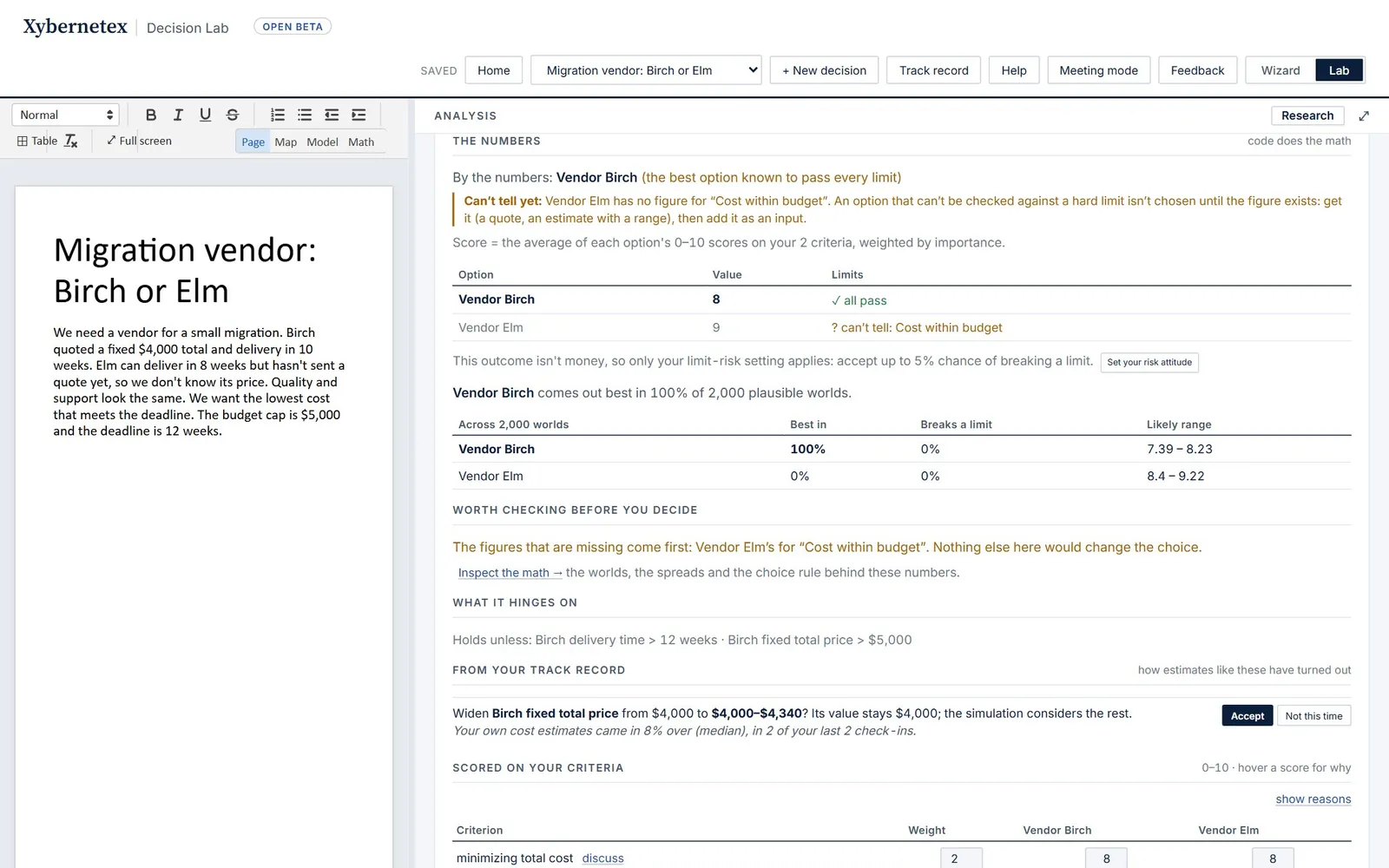
| A figure a hard limit needs is missing | “There's no figure for Elm that ‘Cost within budget’ needs. Can you get one?” | Add the figure as an input |
| No hard limits yet | “Is anything off the table? A budget, a deadline, a line you won't cross.” | Adds a hard limit |
| No lean | “Before the numbers: which way are you leaning?” (or, once the numbers are showing, “Setting the numbers aside: which would your gut pick?”) | Sets your lean |
| A vendor's claim the answer depends on | “Keystone says their go-live timeline is 38 weeks. Do you have more than their word for it?” | Yes: I've verified it, or No: ask them |
| An unknown the answer is sensitive to | “What's the lowest and highest it could realistically be?” | Sets its range (a version you can undo) |
| Two options are close | “It's close. What matters here that the model doesn't count?” | Adds something that matters |
| You have a lean | “What would make you walk away from Northbridge?” | A sentence in your writing |
| An assumption nobody has tested | “How would you find out if it's wrong?” | A note in your writing, or Research it |
skip moves on. Questions you've answered or skipped don't come back; new ones appear as the decision changes. The questions are written by code from your own numbers, so they're instant and always about this decision.
Argue the other side
It's easy to stop looking once an option leads. Argue the other side, beside the answer, makes the strongest honest case for the option that isn't the answer, worked out by code from the same numbers and the same simulated worlds. No AI writes it, so every figure in it is one the Lab computed.
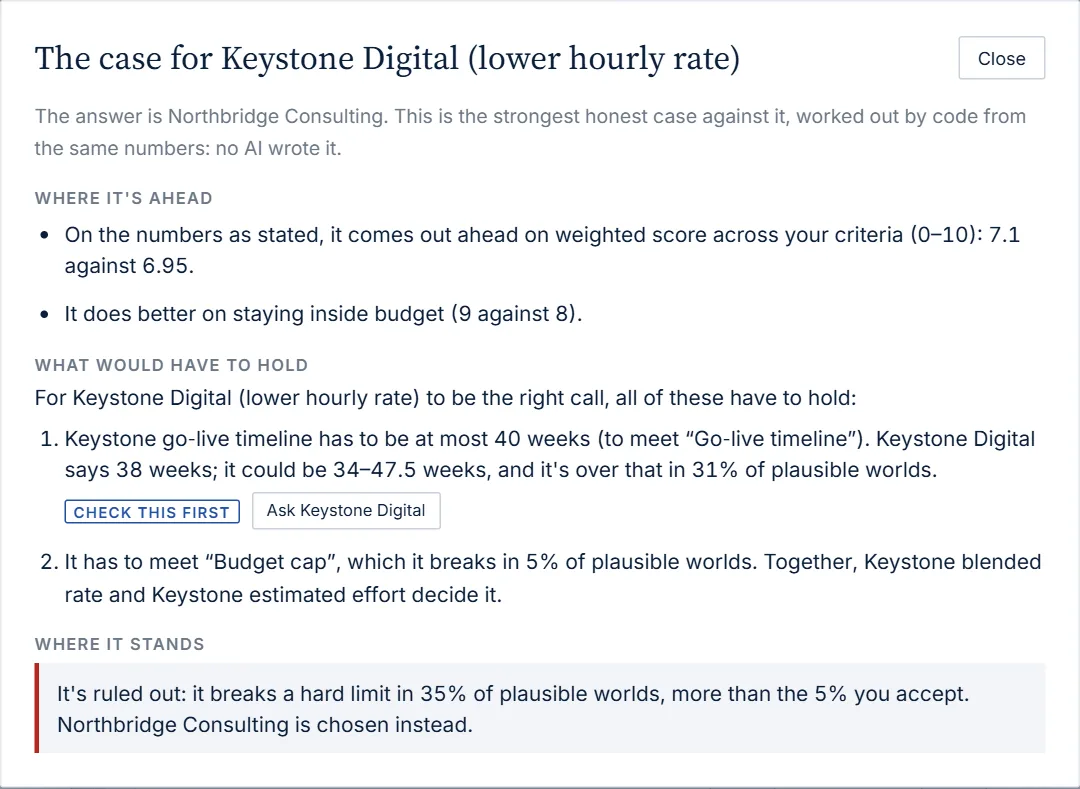
- Where it's ahead: on the numbers as stated, and on each criterion it scores better on.
- What would have to hold for it to be the right call: each hard limit it breaks in some plausible worlds, as the number that decides it, the value it has to stay on the right side of, and how often it doesn't. When the stated numbers favour the answer, also the single numbers that would hand it over.
- Where it stands: how often it comes out best, or why it's ruled out.
The condition to check first is marked. Each one has a next step: Ask the vendor whose claim it rests on, or Try the value as a what-if and watch the answer. With more than two options, pick which one to argue for. It follows the what-if on screen and changes nothing, so it works on a sealed decision too.
Design a better option
Options often lose on what they claim, not what they are: a vendor's timeline that could run past your deadline, a price that breaks the budget in some plausible worlds. Design a better option, beside the answer (or Design the terms that would make it win at the end of an argument), works out the terms that would fix that, by code: commitments on each option's own figures, at the value your limits need.
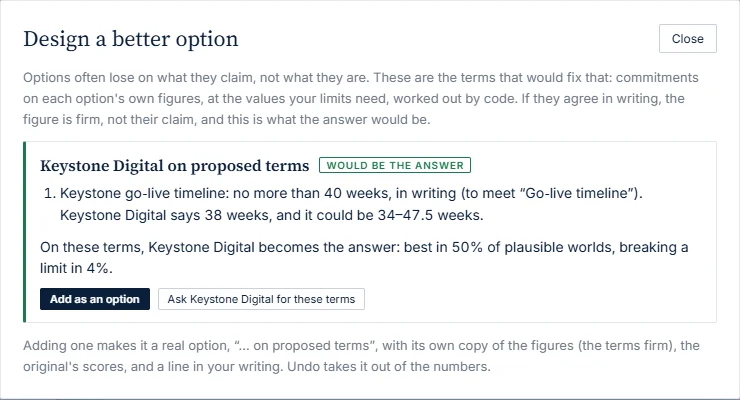
- A term is firm. If they agree to it in writing, it isn't their claim any more, so the simulation stops widening it. Code reruns the answer with the terms in place and says whether that option would become the answer, and how often.
- Only their own figures. Your budget, your deadline and your own judgement scores are never terms.
- Ask … for these terms opens Ask the vendor with those questions chosen.
- Add as an option makes it a real one, e.g. “Keystone Digital on proposed terms”: its own copy of the figures (the terms firm, the rest as they were), the original's scores, its own limits, and a line in your writing so it stays an option. It's a new version: Undo takes it out of the numbers.
Work on this decision
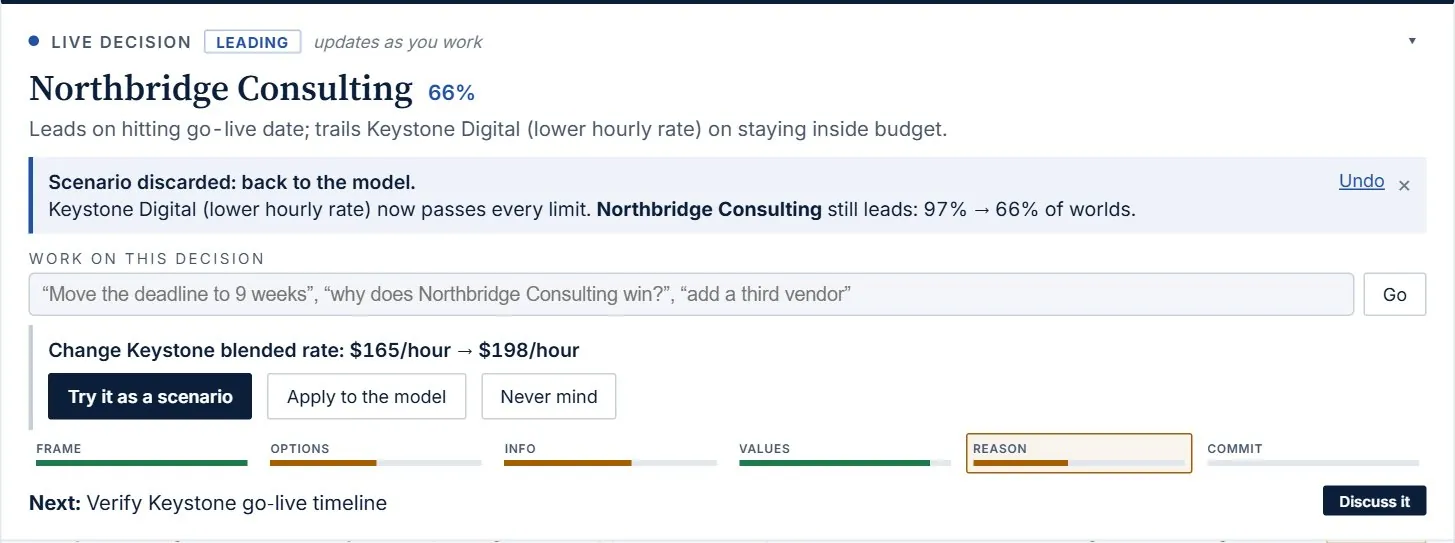
The box in the live decision card takes requests in plain words. It works out what you mean and shows it to you as something concrete before anything changes.
| You type | What happens |
|---|---|
| “Move the deadline to 9 weeks” | A proposal, “Change Deadline: 12 weeks → 9 weeks”, with Try it as a scenario or Apply to the model. |
| “Add a third vendor, Corvid” | “Add the option Corvid”, with Add it. Dropping an option, limit or criterion works the same way. |
| “Why does Atlas win?” | An answer written from the computed facts. Nothing in the model changes. |
| “Research typical overruns” | Opens Research with that question. |
| “Email Keystone about their timeline” | Opens Ask the vendor for that party. |
| “Have the analysts look again” | Starts (or refreshes) Stress it. |
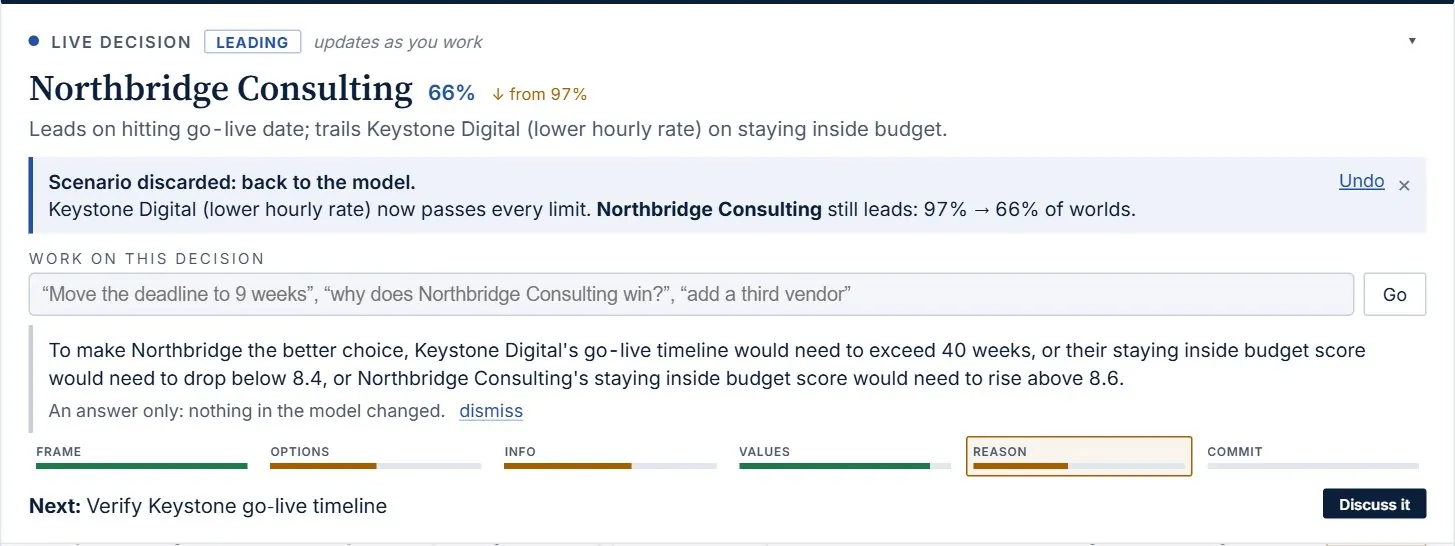
An answer belongs to the numbers it was written from: if you change something afterwards, it's labelled Answered before your last change, with Ask again.
Two rules keep this safe. A changed number must be one you typed (the AI can't invent a value), and it must be for an input that exists in the model. If your question assumes something the numbers contradict, such as asking why an option wins when no option passes your limits, the answer says so first.
The numbers
The The numbers card is where the model lives. It's built from your writing and documents the first time your decision is ready, and you can see and change every part of it.
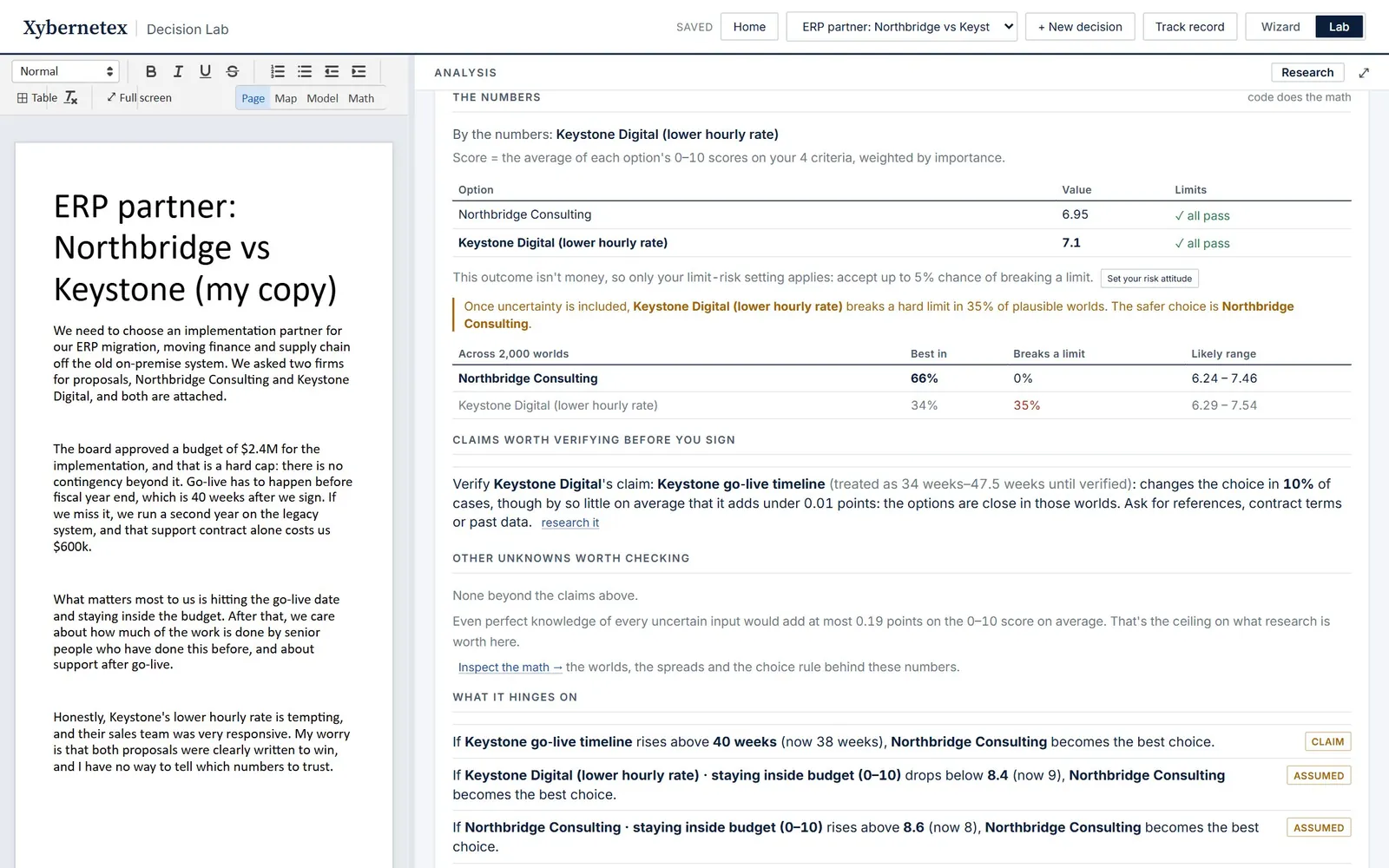
Scored on your criteria
Most decisions are scored on the things you said matter. Each option gets a 0–10 score on each criterion, weighted by how much it matters to you:
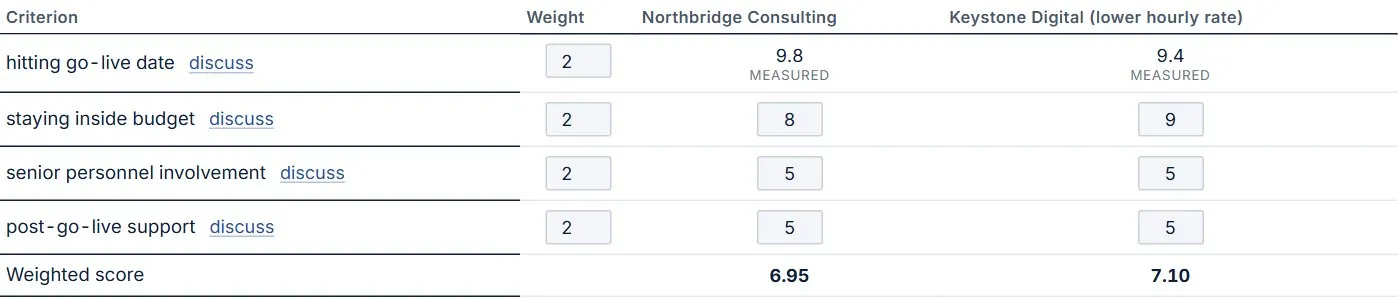
- Weights run 0–5. Changing one asks you to confirm (and to give a reason, if your criteria are locked).
- If you'd rather compare on a single formula (e.g. total cost), use Use one formula instead; Score on my criteria switches back.
What's worth checking
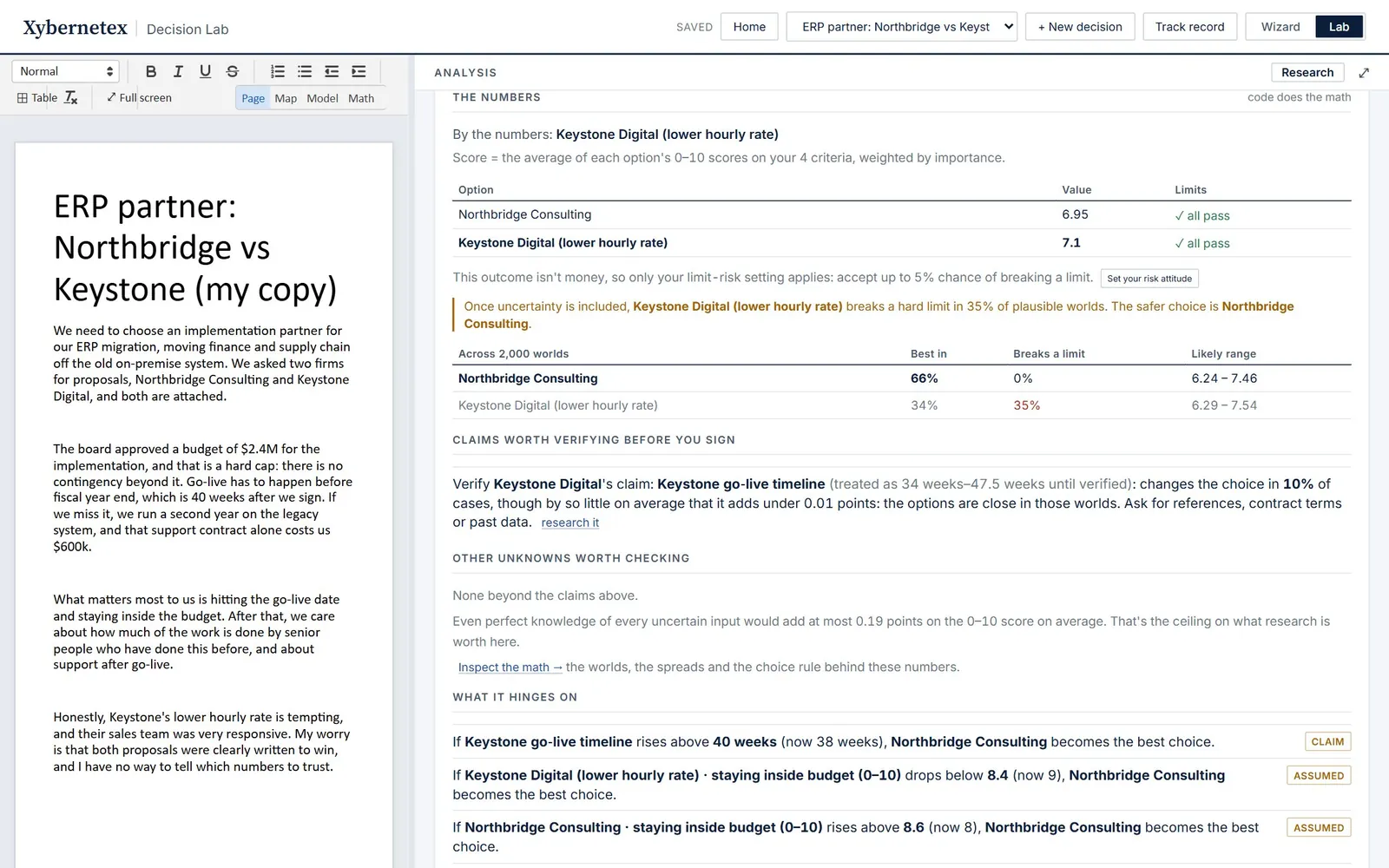
- Worth checking before you decide ranks the uncertain numbers by what pinning them down could be worth, and tells you which aren't worth researching at all.
- What it hinges on: “If Keystone go-live timeline rises above 40 weeks, Northbridge becomes the best choice.”
- Inspect the math → opens the full analysis (see Math).
Your risk attitude
Set your risk attitude asks two questions once, and they apply to every decision: how you'd value a risky bet (for money outcomes), and what chance of breaking a hard limit you'll accept (5% by default). Options above that chance are screened out before the best is picked.
Where each number came from
| Badge | Meaning |
|---|---|
| ✓ traced | The exact quote is in your writing or a document. |
| derived | Worked out from quoted figures. |
| assumed | An estimate. It's given a range, and the simulation treats it as uncertain. |
| untraceable | The AI cited a quote that isn't there. Treat it as a guess. |
| fact / claim / verified | Whether it's your own figure, another party's claim, or a claim you've confirmed. Claims are widened against the party making them (a vendor's timeline is assumed to run long) until you click Mark verified. |
Rebuilding and locking the model
- Rebuild the model redrafts it from your writing and sources, keeping your weights and anything you settled in Discuss. Changing a number or a weight doesn't need a rebuild: the answer updates as you type.
- A locked model doesn't change when your writing does. Instead, Check my writing for updates lists what your writing now says that the model doesn't, as updates you accept or dismiss one by one. The Lab also checks automatically a few seconds after you stop typing.
- recalculate from scratch starts over with a brand-new model.
The decision record
Download record saves everything behind the answer (your text, every number and its source, the formulas, your risk settings, the code version) in one file. Verify now recomputes the answer from that file alone, and must get the identical result. Anyone can check a saved record with Verify a saved record….
When a figure is missing
Every hard limit is checked for every option, and the result is one of three: it passes, it breaks, or the Lab can't tell, because the figure the limit needs doesn't exist for that option yet (a vendor hasn't sent a quote, say). Can't tell is never treated as a pass.
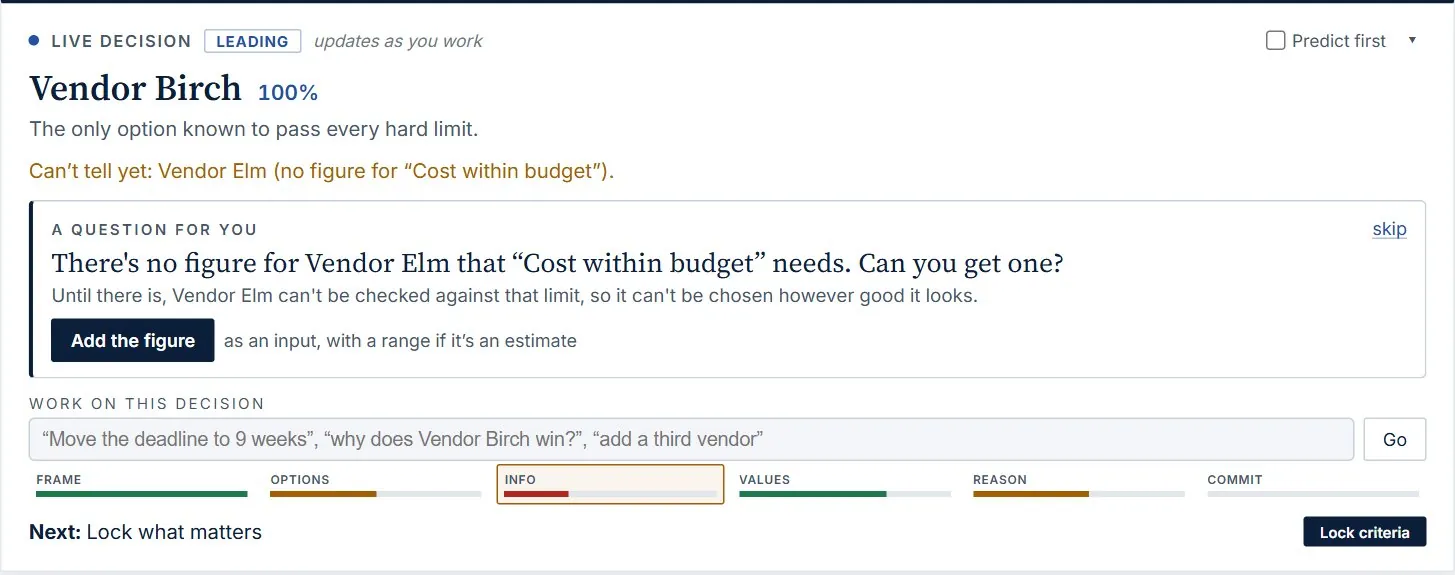
- An option that can't be checked against a hard limit isn't chosen, however good it looks, until the figure exists. The live decision, the numbers card (? can't tell in the limits column) and meeting mode all say so.
- The missing figure goes to the top of what's worth finding out, the Info link in the quality bar drops, and the first question asks for it.
- When you get the figure, add it with + Add an input (with a range if it's an estimate), or attach the vendor's quote. The comparison is then settled by the numbers like any other.
What-ifs and scenarios
Every number in the model is a live what-if: change it and the whole analysis recomputes instantly, without changing your model. The numbers you're trying form a scenario.
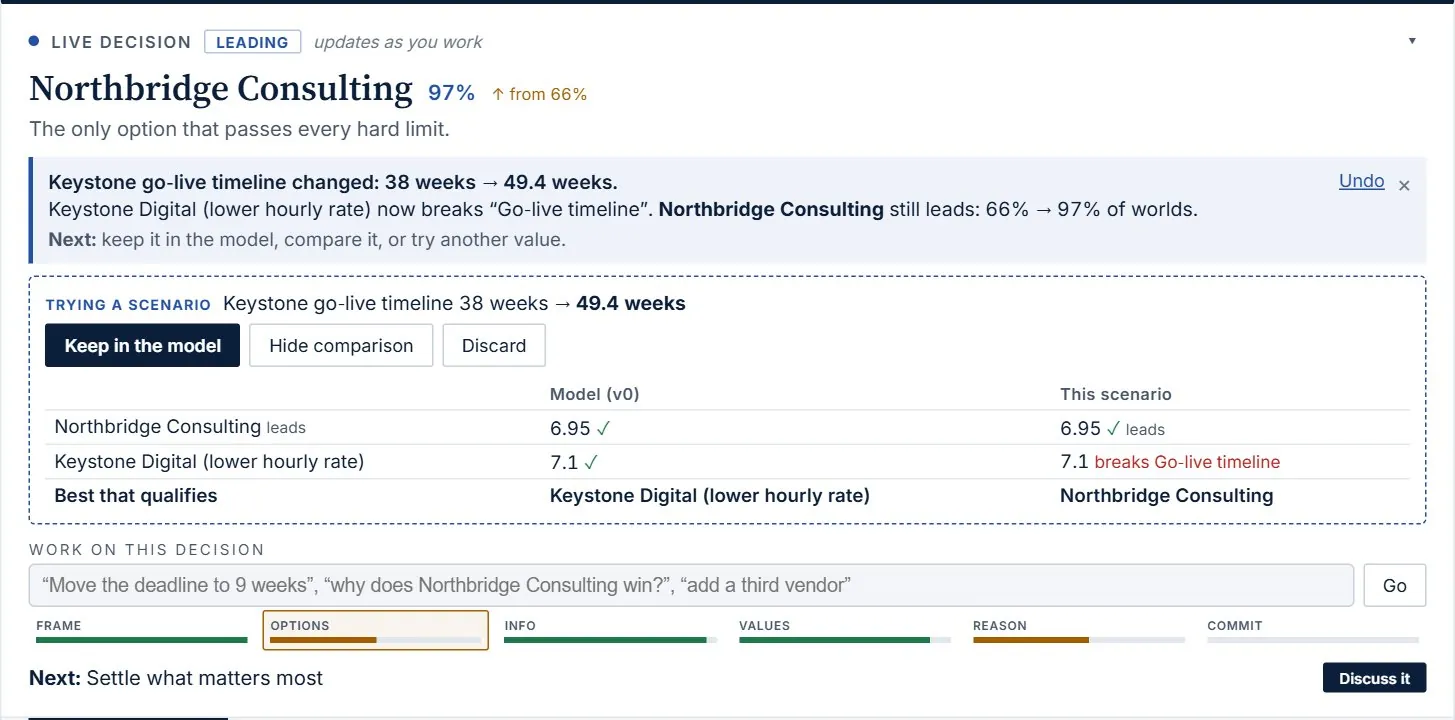
- Keep in the model makes the scenario's values part of the model, as a new version. It can be undone, and it survives rebuilding the model.
- Compare with the model shows each option's result and the limits it breaks, before and after. It stays up to date as you keep changing numbers.
- Discard goes back to the model (and can be undone too).
- Save as a named scenario keeps a set of what-ifs by name, e.g. “if the rate is 7%”, so you can compare several and merge one in later.
Scenarios stay with the decision, so you can leave and come back, or switch views, without losing them.
Predict, then see
Turn on Predict first (in the live decision's header, or in meeting mode) and a change you make waits for your guess before it shows its effect:

Pick a direction (or just show me), and the answer moves, with your guess on top:

- Code judges the move from how often each option comes out best before and after; small shifts with the same leader count as no change.
- Your score is kept for each decision. Where your instinct and the model disagree is worth a closer look: one of them knows something the other doesn't.
- It applies to the numbers you change, the limit boxes, “Try it as a scenario” and meeting mode's steppers. Undo and Discard never ask.
Adding and removing inputs
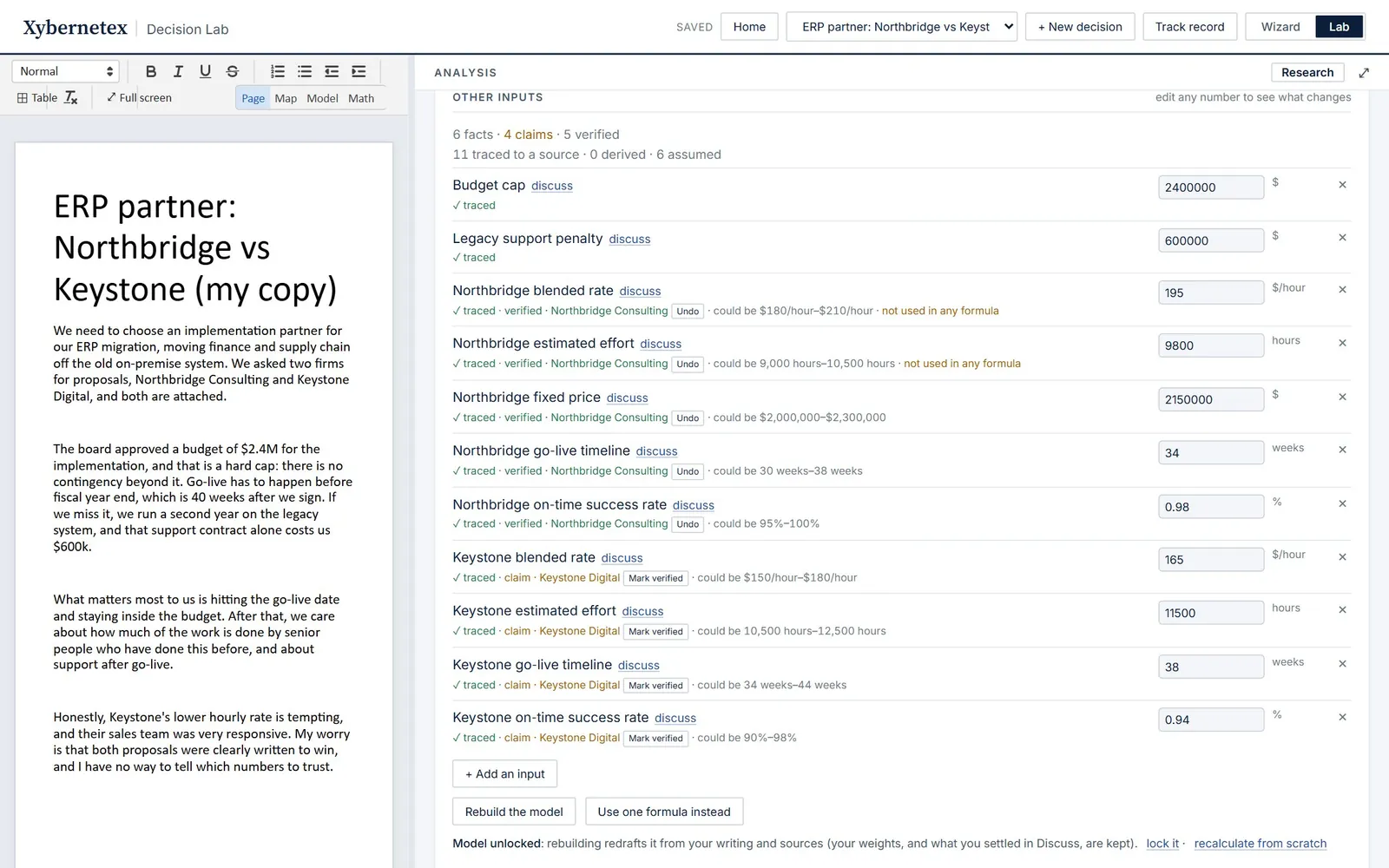
The model's inputs are listed under Other inputs. Edit any value to try a what-if. Inputs that no formula uses are labelled not used in any formula, since they can't change the answer.
Taking an input out
Click × next to an input. Before anything changes, the Lab shows each formula as it will read without it:

- A quantity (a cost, hours, a benefit) counts as nothing, so a term it multiplies goes too: removing “benefit” from “benefit × chance” removes the whole term.
- A modifier (a chance, a share, a percentage) just stops modifying: removing “chance” leaves “benefit”.
- Where removing it has no plain meaning (you'd be dividing by it, or it's part of a comparison), the Lab explains why and changes nothing.
Adding your own
+ Add an input takes a name, a value and a unit, and how it counts: it adds to, subtracts from or multiplies one of the model's figures, for every option or for one.

Both are new versions you can undo, and both survive rebuilding the model.
Documents and revised proposals
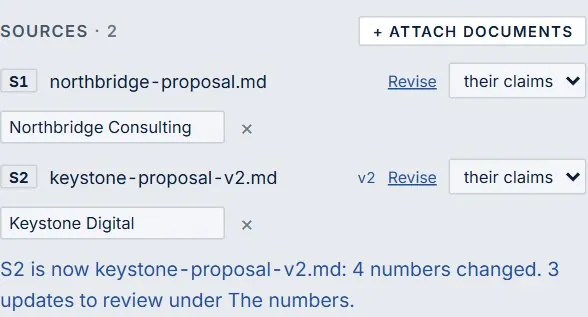
Attach proposals, contracts or reports under Sources (PDF, Word, text, Markdown or CSV, up to 15 MB). For each, say whose it is:
- their claims: another party's figures (a vendor's price or timeline). These are treated as optimistic until you verify them. Name the party in the From box.
- our facts: your own figures.
Every number the Lab uses from a document is quoted, and code checks the quote is really there.
When a revised proposal arrives
Click Revise on the document and choose the new file. It takes the old one's place (same S-number, so everything quoted from it still points to the right document), and the earlier version is kept in its history and on the audit trail.
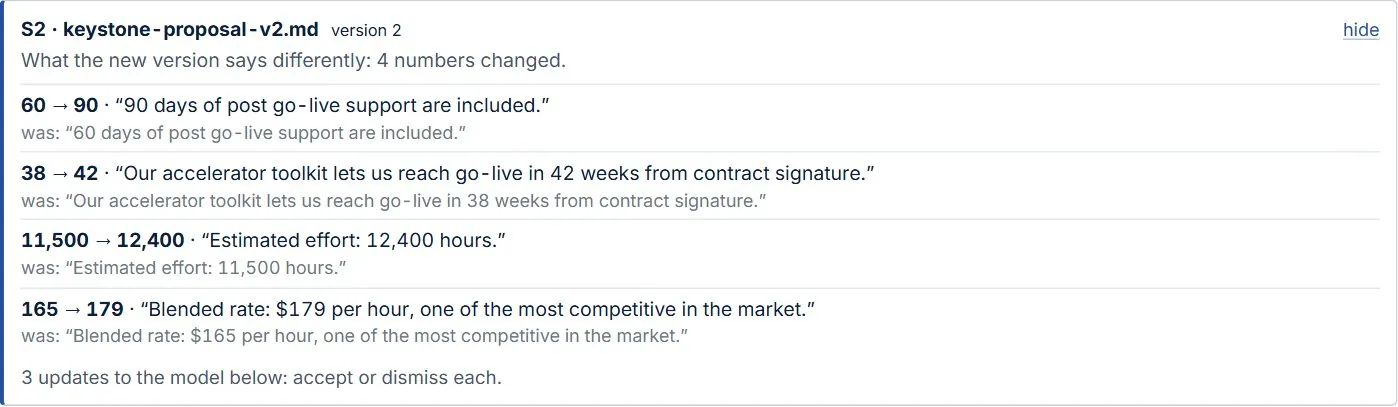
Every input quoted from that document is then looked up again. Where the wording changed, you get a proposed new value with the new quote; where a sentence is gone, the input is flagged. Nothing changes until you accept each one:
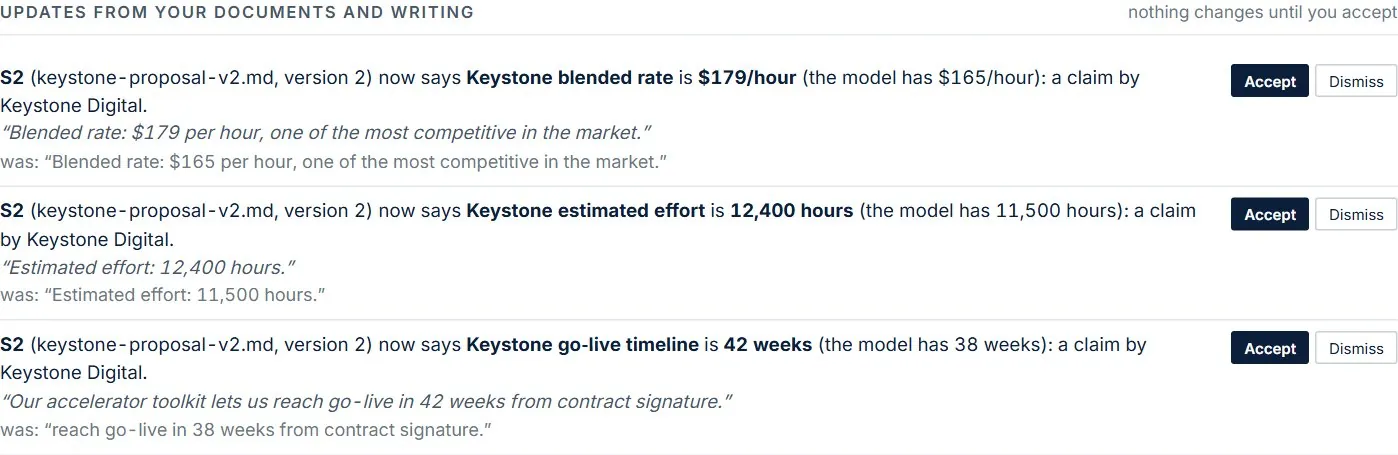
New figures in a revised document (a new fee, say) appear in the “what changed” list but aren't added automatically. Add them with + Add an input, or run Check my writing for updates.
Ask the vendor
When your decision rests on another party's claims, the Lab drafts the clarification request for you. Open it from Ask next to a vendor's document under Sources, from ask … next to a claim worth verifying, or by typing “email Keystone about their timeline” in the work box.
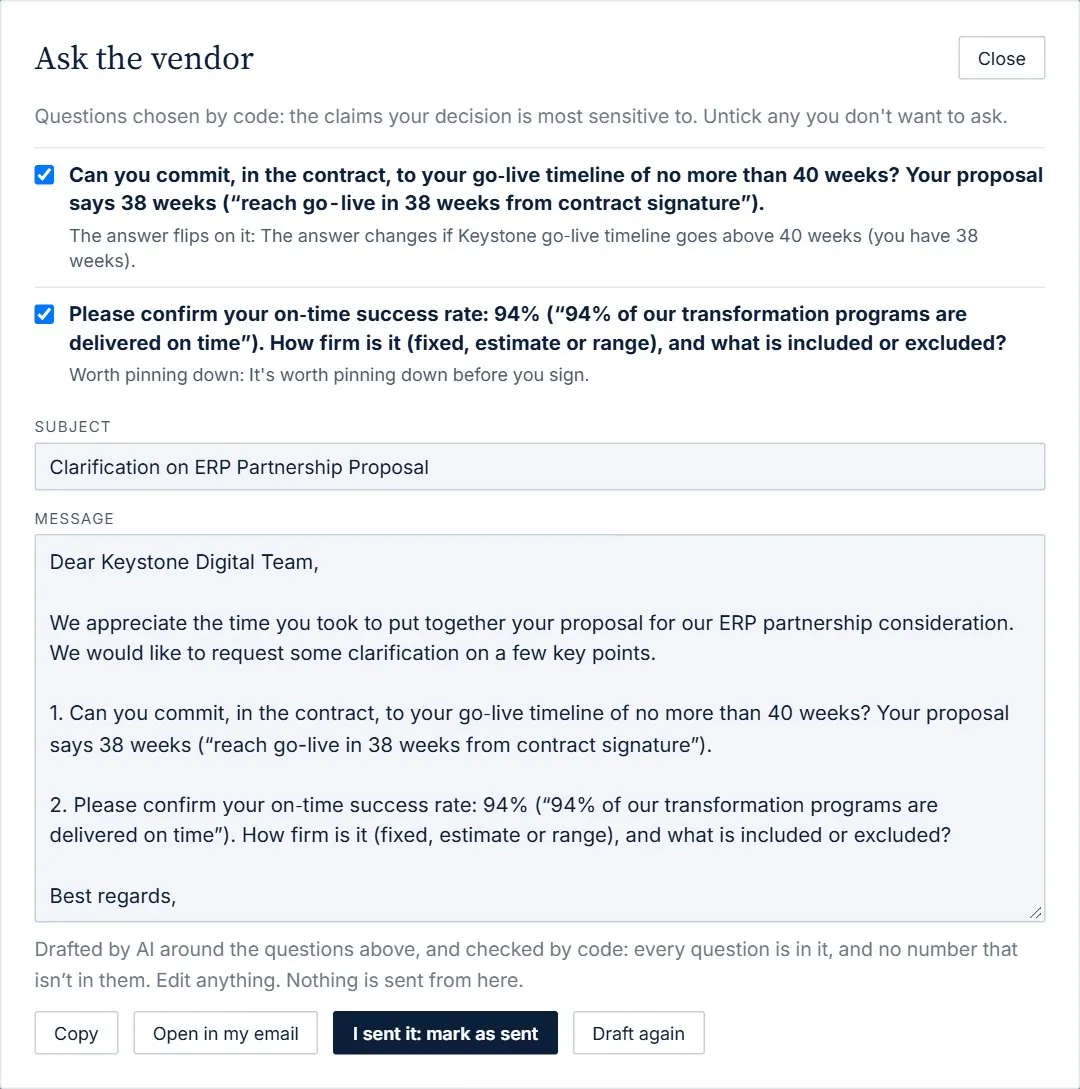
- Code chooses the questions, with why: a commitment where the answer flips (“Can you commit, in the contract, to a go-live of no more than 40 weeks?”), confirmation where pinning a figure down could change the choice, and a plain statement where their document doesn't state it. Untick any you don't want.
- The AI writes the email around them. Code checks every question is still in it and that it adds no numbers of its own; if not, a plain version written by code is used.
- You send it yourself. Edit anything, then Copy it or Open in my email. Nothing is ever sent from the Lab.
- I sent it: mark as sent puts it on the record. The document shows asked · waiting, and Home lists it under Waiting on others.
- When their answer arrives, attach the new proposal with Revise on their document: the request is marked answered and the figures that changed are proposed as updates. If they answered some other way, use mark answered.
Discuss the model
Discuss the model opens an analyst that questions your numbers, one pointed question at a time, starting with what the answer is most sensitive to.
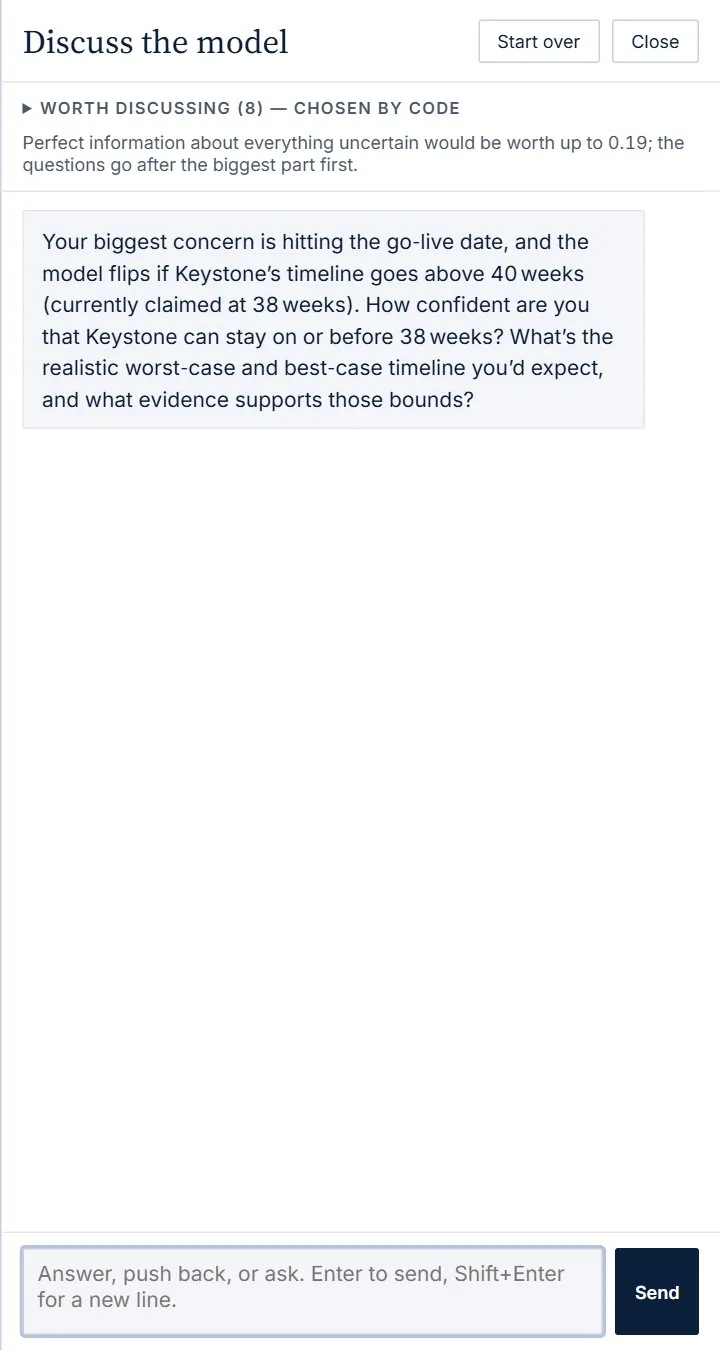
- The topics, under Worth discussing, are chosen by code: numbers close to flipping the answer, unverified claims, guesses, and single numbers that should be ranges. When nothing left could change the answer much, it says so and stops.
- Answer, push back or ask. When something you say implies a different number, it proposes the change, quoting your own words. Accept applies it and shows what moved.
- Changes you accept survive rebuilding the model.
Research
The Research button (and Check it or research it links throughout) looks up outside evidence: base rates, benchmarks, typical overruns.
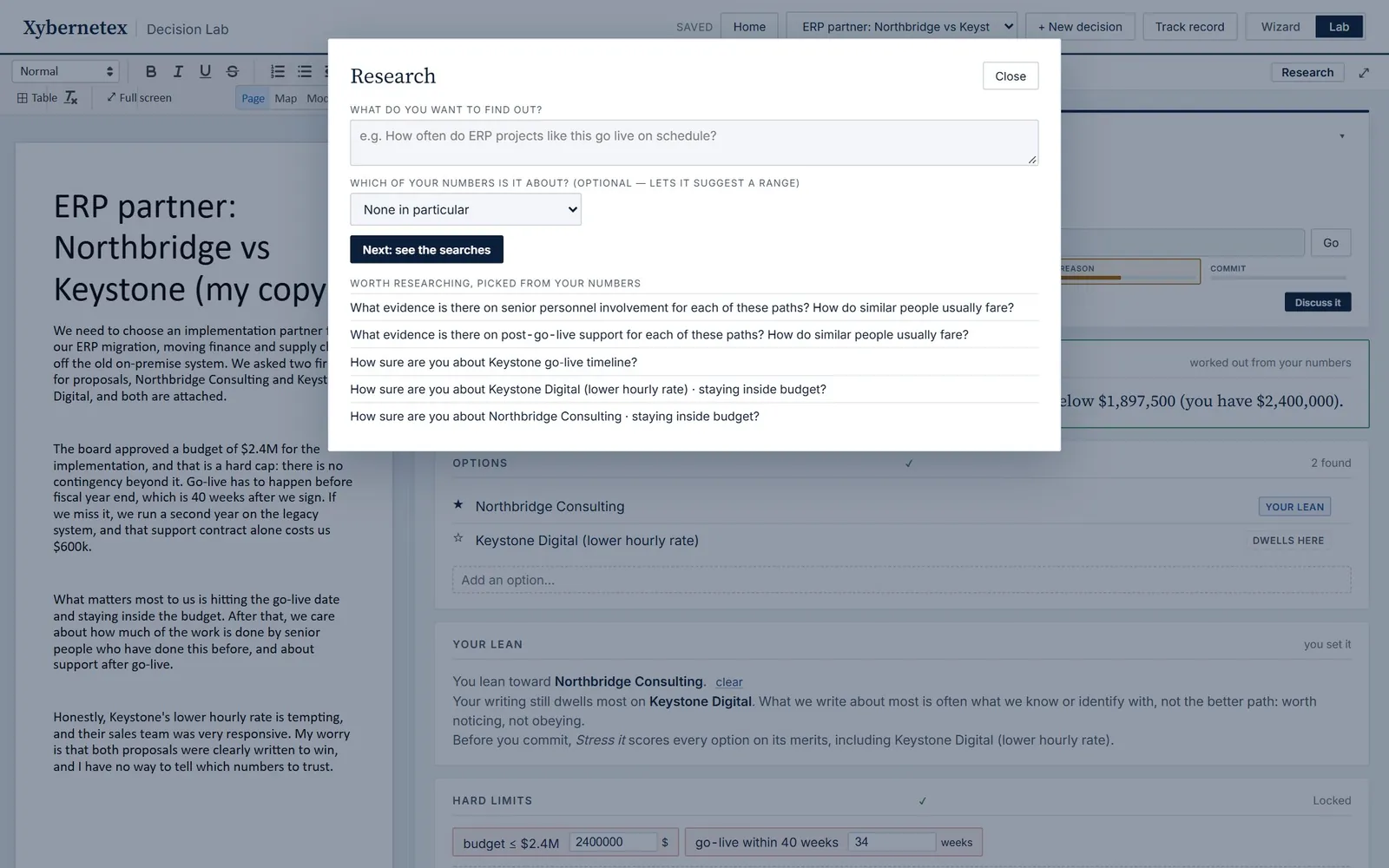
- Ask. Type a question, or pick one of the suggestions chosen from your numbers. Optionally say which of your numbers it's about.
- Check the searches. The AI writes two or three web searches. You can edit them, and option and company names are removed before sending unless you untick it. The cost is shown before anything is sent.
- Read the findings. Each figure comes with its quote, site and date; code drops any figure whose quote isn't on the page, and sets aside companies' claims about themselves.
- Use it. Use this range updates the number's realistic range. Attach findings as a source keeps them as a document. For an assumption, record whether the evidence supports it, contradicts it, or is unclear.
Assumptions
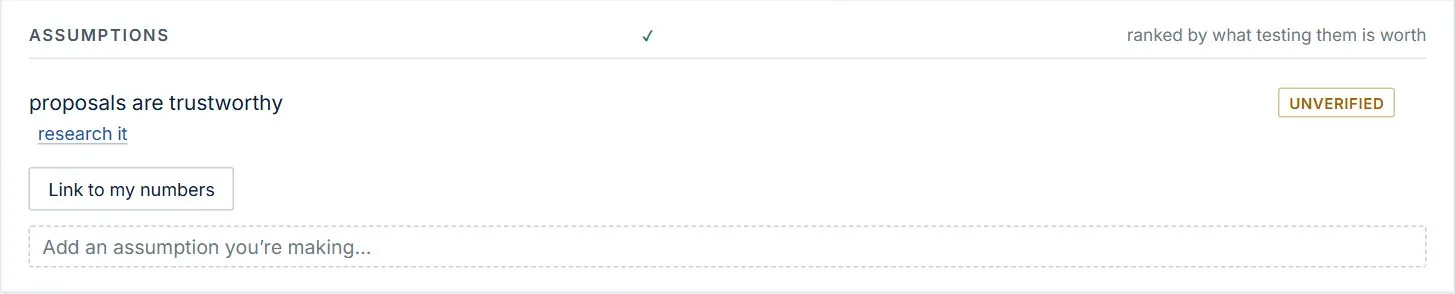
Assumptions are what you're taking for granted. Once there are numbers, Link to my numbers connects each assumption to the inputs it's about, and the card ranks them by what testing them is worth: whether being wrong could change the answer, and by how much. Use research it to test one, then record the verdict: ✓ supported, ✕ contradicted or ? unclear.
The criteria lock
Lock what matters before you read the proposals. Lock criteria commits your criteria, how much each matters, your hard limits and your risk attitude, with a timestamp and a fingerprint.
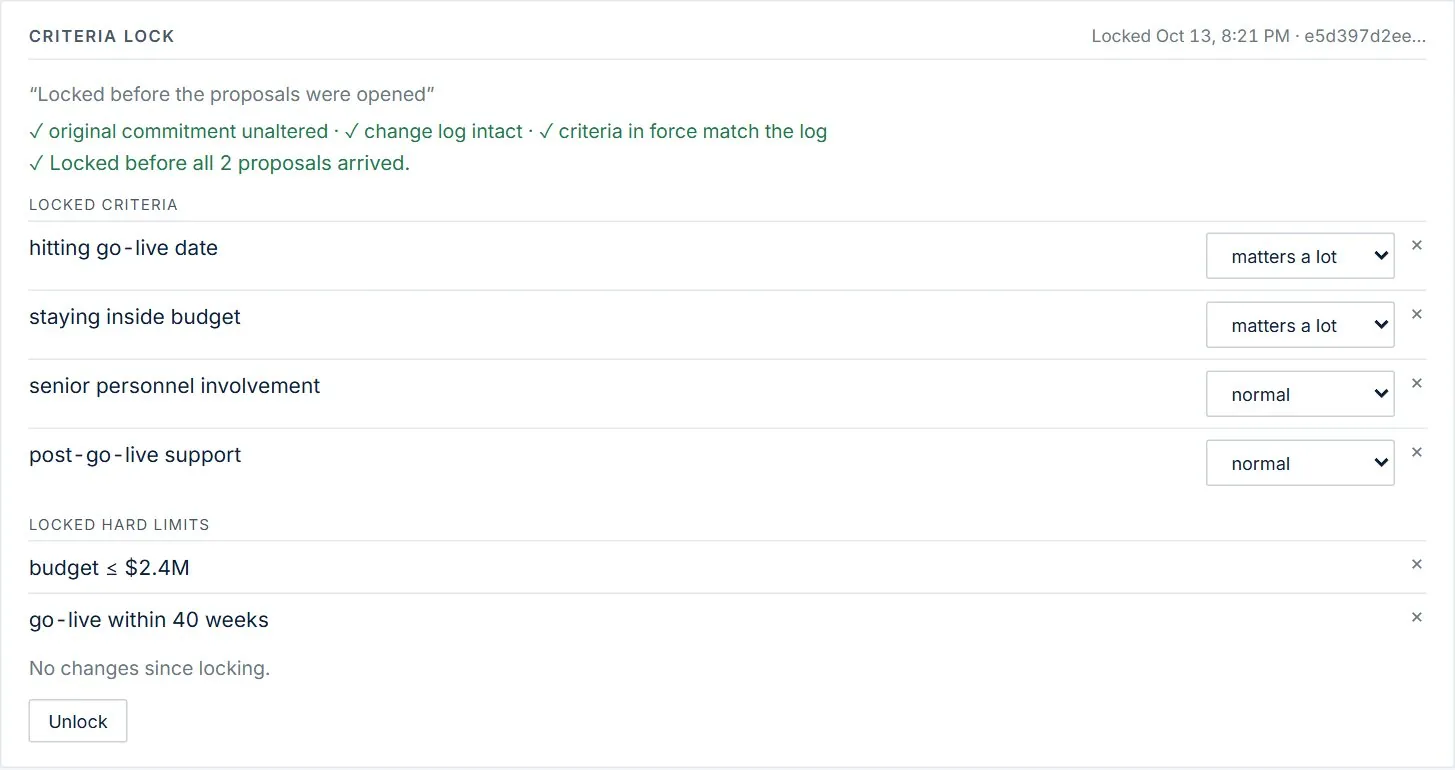
After locking, any change needs a reason and is logged, so nobody (including you) can quietly re-weight things to fit a favourite. Unlocking also needs a reason; earlier locks stay on the record.
Stress it: the four analysts
Stress it runs a deeper review that takes a few minutes. Four analysts, each with a different worldview, score every option on every criterion:
| Analyst | Asks |
|---|---|
| The Operator | Can it actually be done? |
| The Quant | What do the numbers say? |
| The Contrarian | What is everyone missing? (Has to argue against the favourite.) |
| The Steward | What holds up in the long run? |
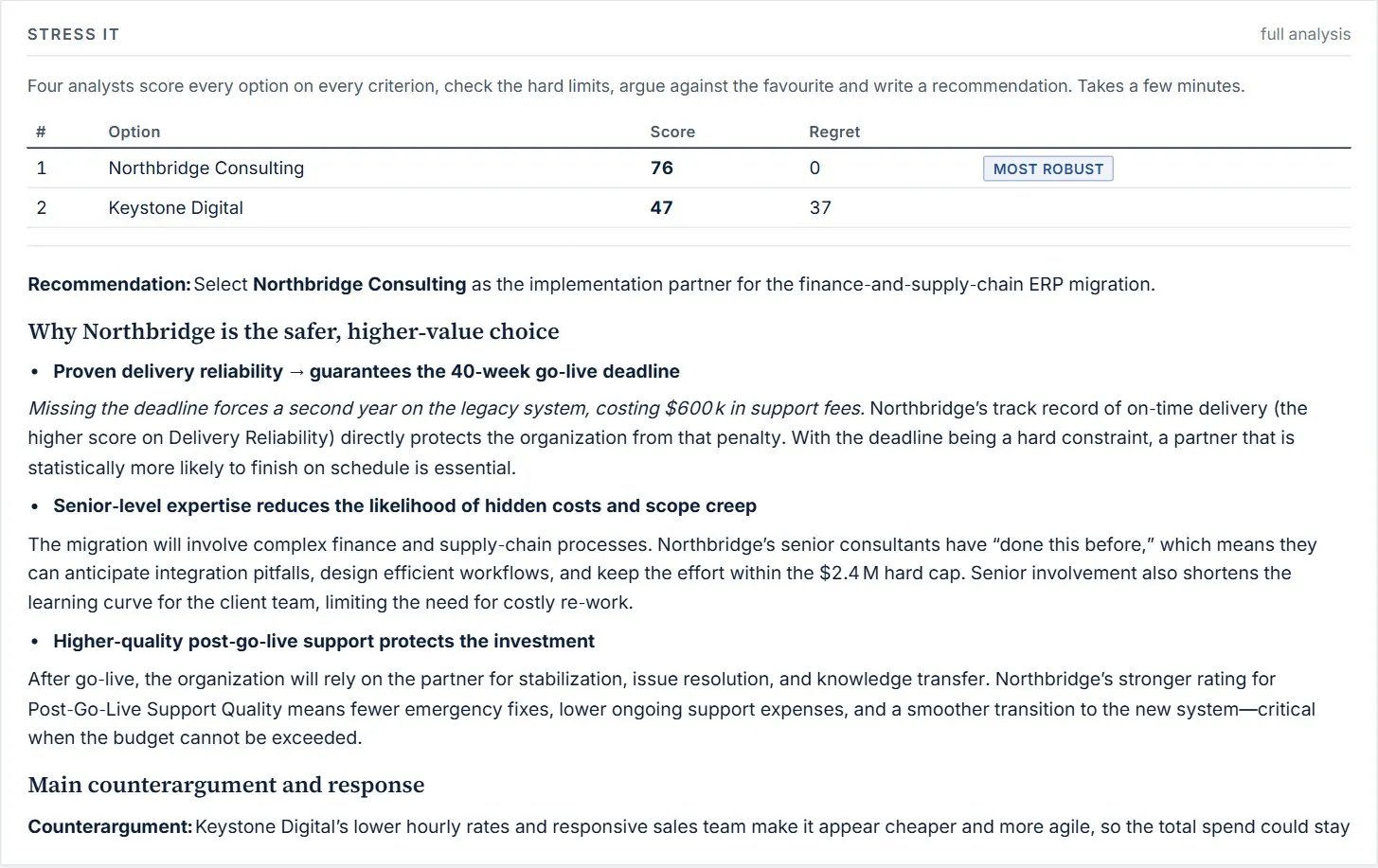
- The report says which version of the model it read. When you've changed things since, it says “Based on version 3: your model is now version 5”, and Refresh the review (quick) brings it up to date in a few minutes, keeping the analysts' scores.
- The live decision is always current; the report runs at its own pace and you choose when to refresh it.
History, versions and undo

How the answer moved lists every change to the decision, newest first, with the answer right after it. Changes to the model are numbered versions (v1, v2…), so you can always tell which version a report or a document was based on.
↶ Undo steps back one change: the model, the lock, your lean, weights and settled numbers go back to how they were. Conversations in Discuss are kept.
Map, Model and Math
Map
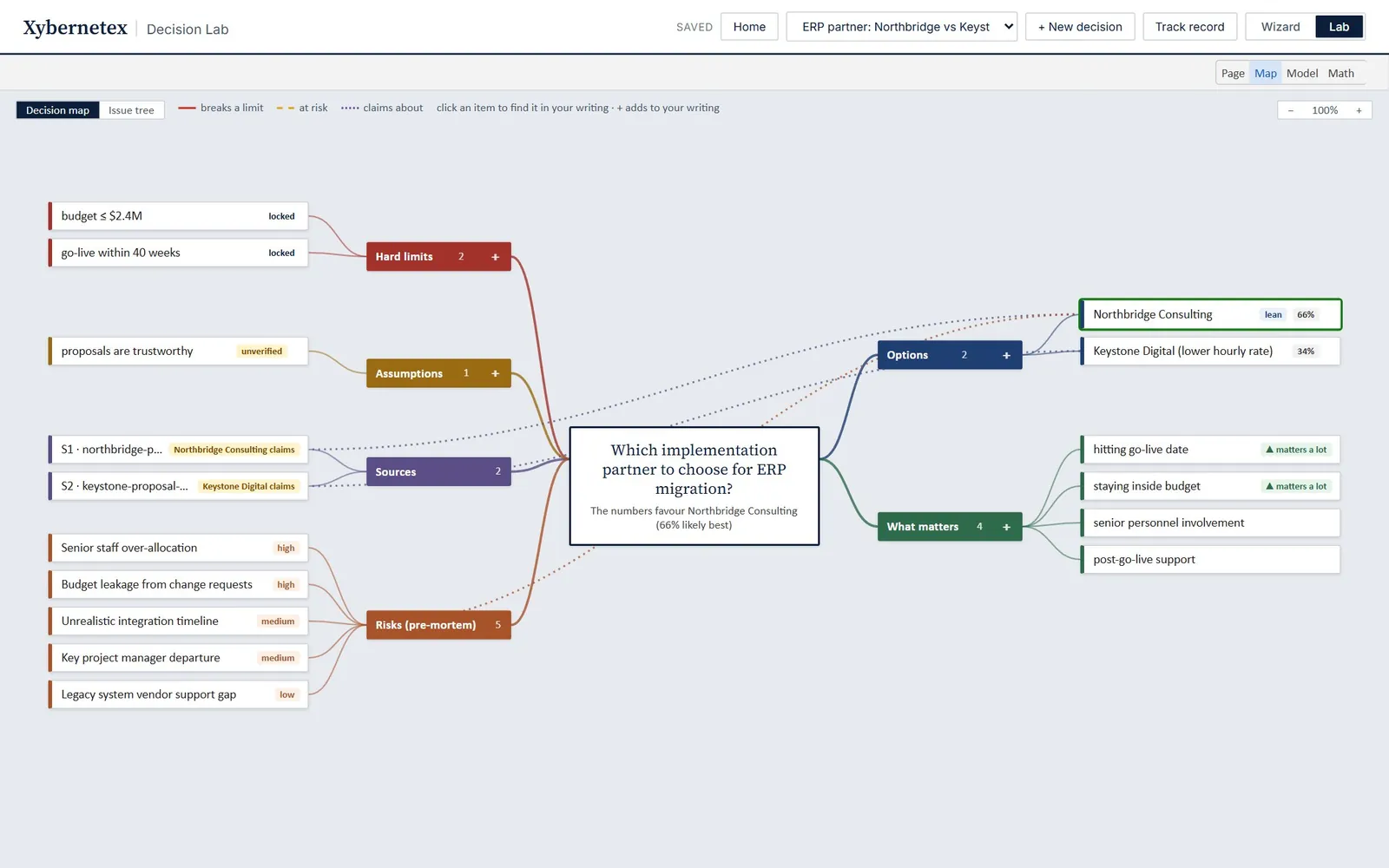
Click an item to find it in your writing, + to add one, or × to dismiss one. Issue tree breaks the question into sub-questions and marks each Answered, Blocking, Open or No evidence yet.
Model
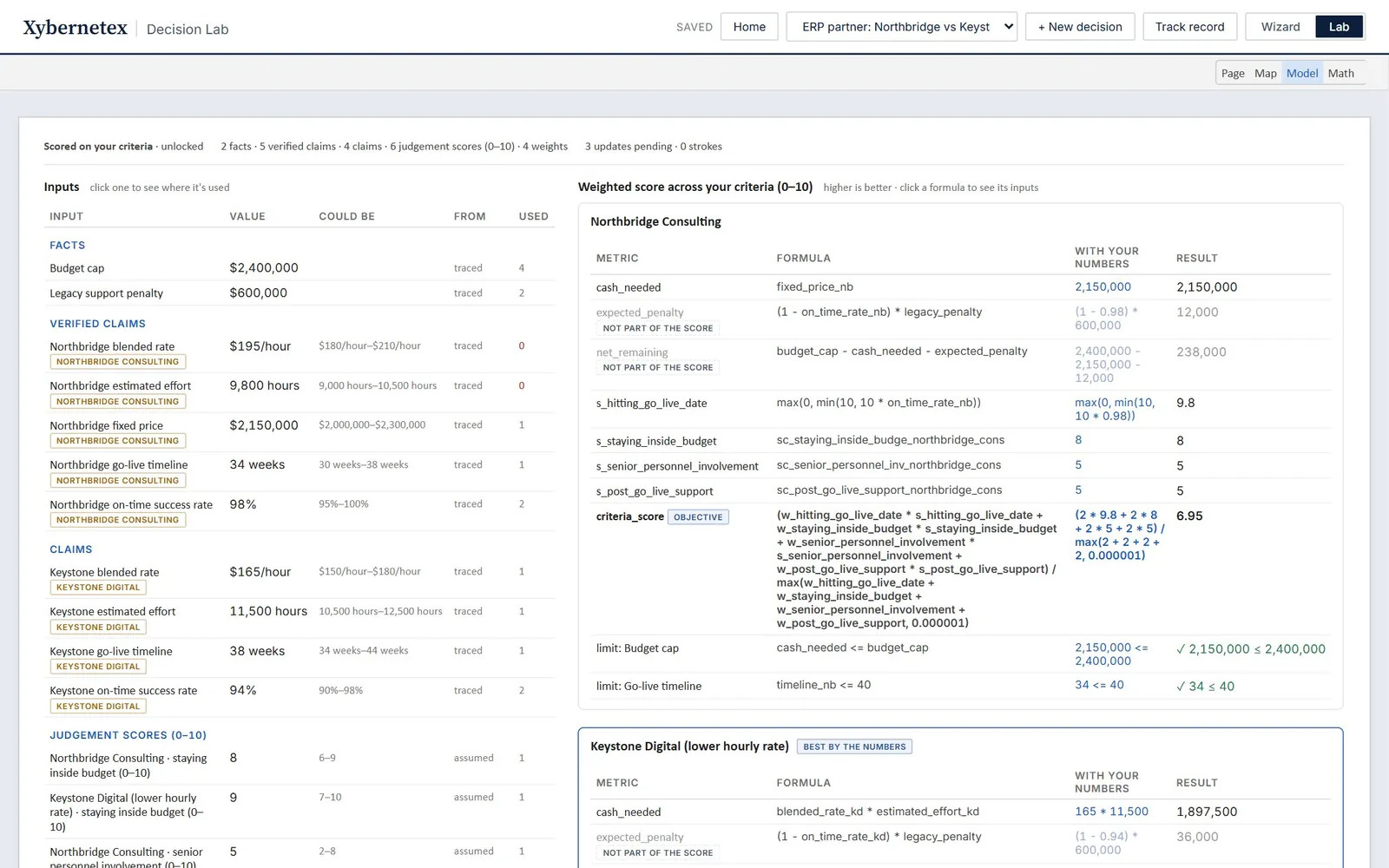
The whole model as a read-only sheet: every input grouped by where it came from, and each option's formulas shown three ways (the formula, the formula with your numbers in it, and the result). Click an input to highlight the formulas that use it. Formula editing can be turned on under Advanced settings; code checks every edit before it applies.
Math
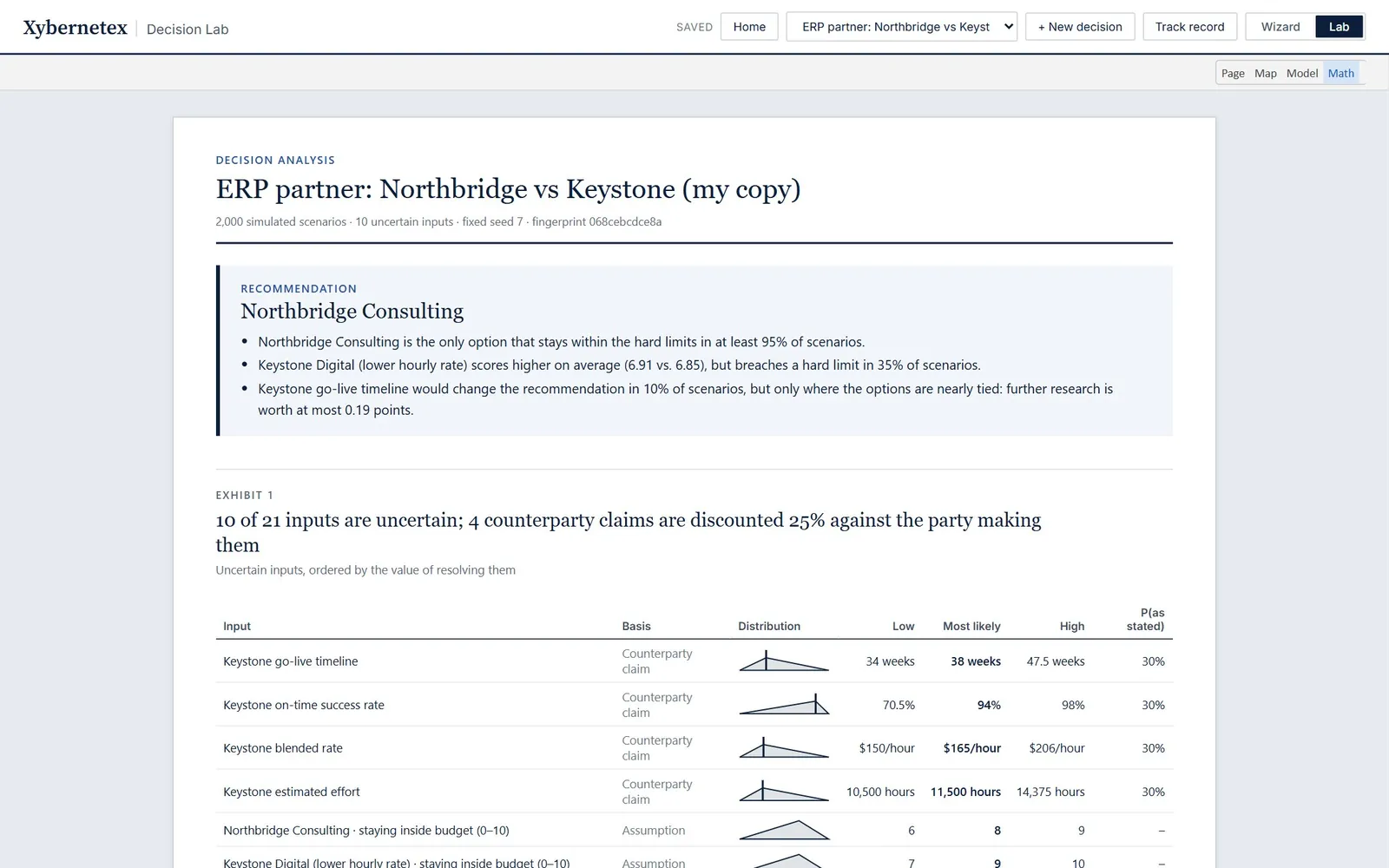
A full analysis report: the uncertain inputs and their distributions, sample scenarios, outcome distributions, the two-stage choice rule (first screen out options that break limits too often, then rank the rest), the value of more information, stability, and break-even values. The simulation uses a fixed seed, so the same model always gives the same answer.
Meeting mode
Meeting mode (at the top of the Lab) shows the decision full screen, in large type, for a room or a shared screen. It's the same live model: change a number and everyone sees the answer move.
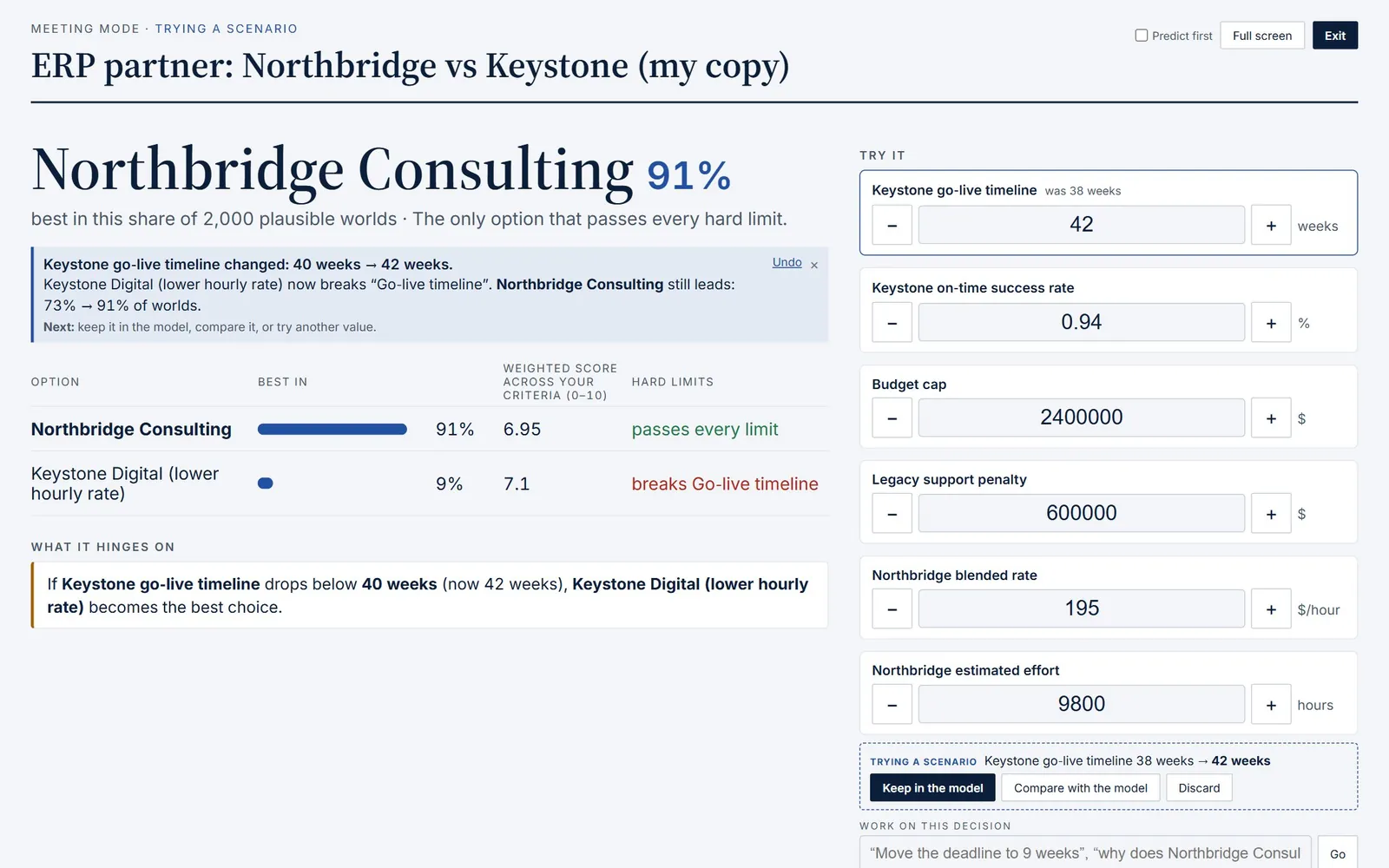
- The answer and how often it's best (or, when nothing is uncertain, that it's certain with these numbers). Ties, options that can't be checked, and no option passing are all said plainly.
- Every option with a bar for how often it's best, its value, and its hard limits.
- What it hinges on: only what would change the answer on screen. Click one to jump to that number.
- Try it: the numbers that matter most, in big boxes with − and + steppers.
- Underneath: the scenario bar (Keep in the model, Compare, Discard), what your last change did, and the work box, for questions from the room.
Turn on Predict first in meeting mode and have everyone call it before each change. Full screen hides the browser; Exit or Esc goes back.
Independent scoring
For decisions several people need to judge, a panel can score the judged criteria independently.
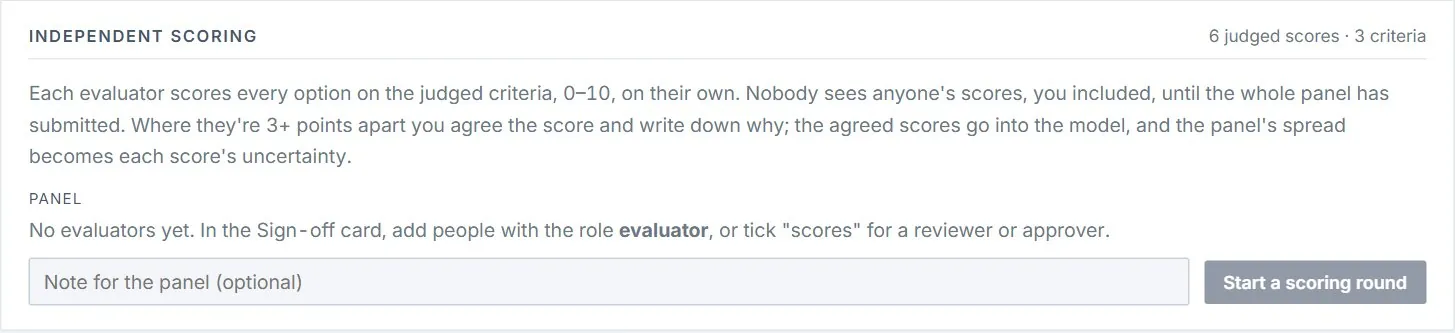
- In Sign-off & seal, add at least two people with the role evaluator (or tick scores for a reviewer or approver).
- Start a scoring round. Each evaluator scores every option 0–10 on their own. Nobody sees anyone's scores, you included, until the round closes.
- Where scores are 3 or more points apart, you agree a score and write down why.
- Apply the agreed scores to the model. The panel's spread becomes each score's uncertainty. It's logged, can be undone, and goes into the evidence pack.
Evaluators must declare any interests before scoring, and anyone recused doesn't score.
Deciding and checking in
When you're ready, the Decide card records your choice and freezes what you knew and believed at the time.
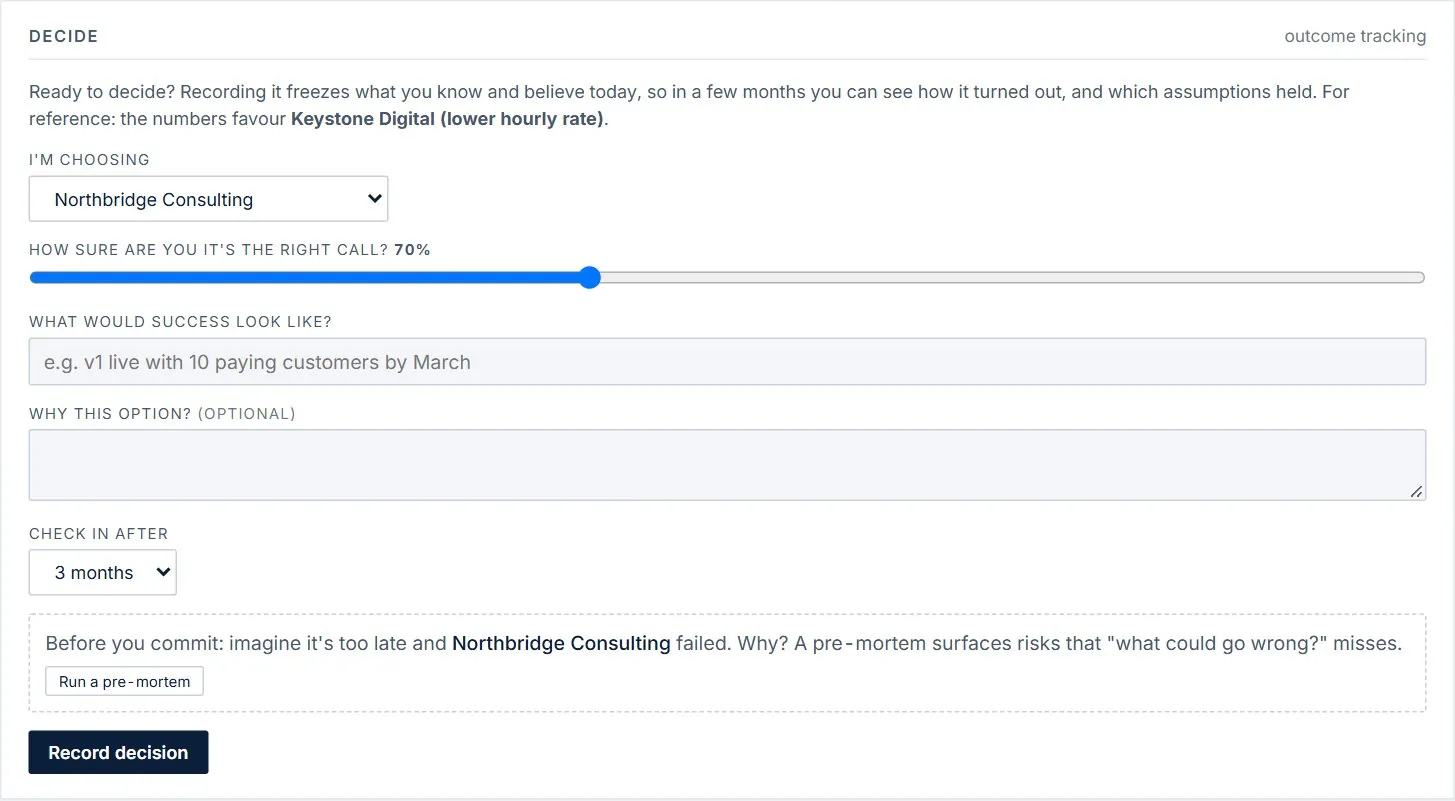
- I'm choosing, how sure you are (50–100%), what success looks like, and when to check in (1 month to a year; 3 months by default).
- Run a pre-mortem imagines it's later and your choice failed, and lists the likeliest reasons, with what to watch for and what to do now. Tick the ones to remember; you'll be asked about them at the check-in.
- Record decision. You can add the check-in to your calendar.
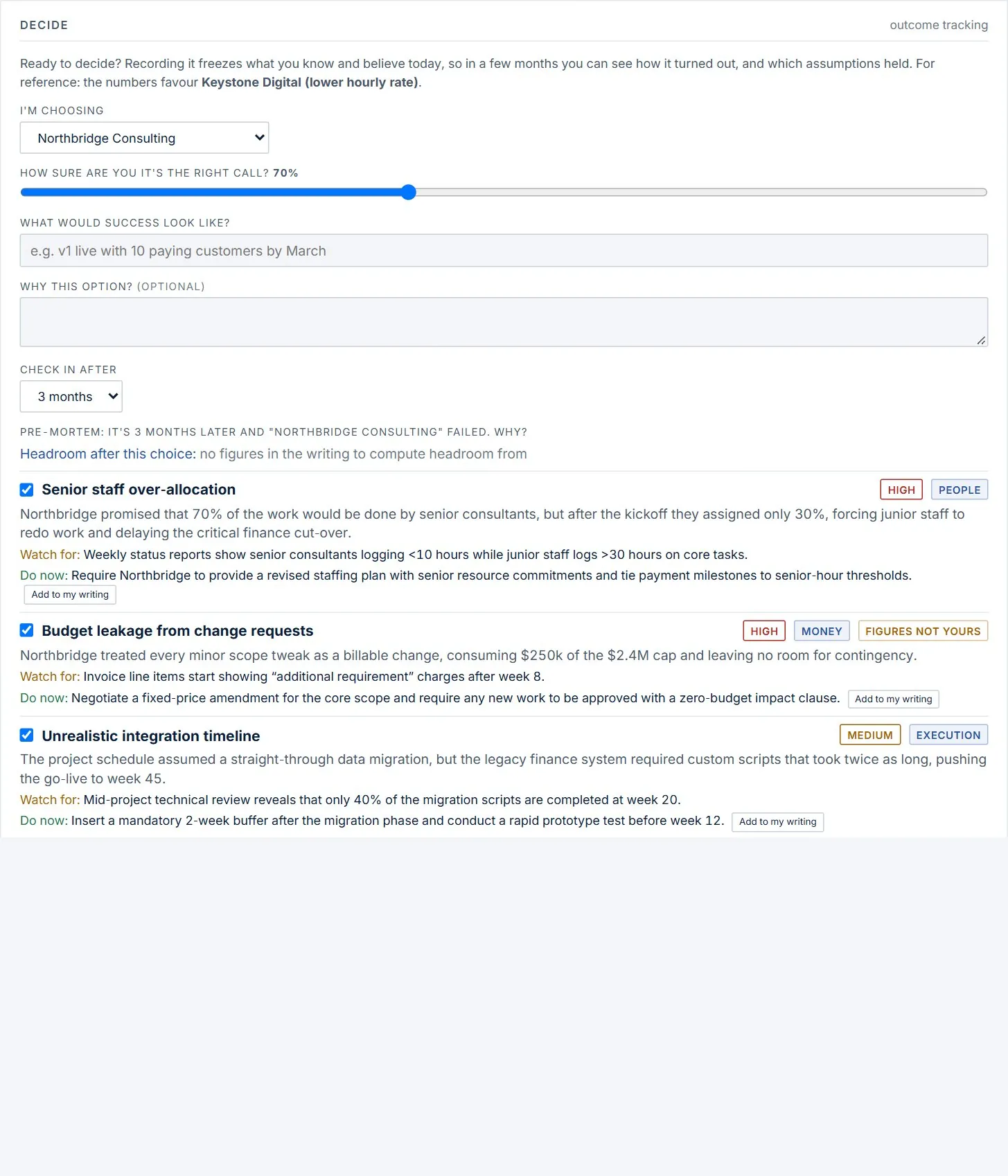
The check-in
When the date comes, Home lists the check-in. You answer: how it turned out compared with what you expected, whether it was the right call, which assumptions held, whether any pre-mortem failures happened, and what the chosen option's costs and timelines actually came to. Leave anything blank you don't know.
Learning from outcomes
Your check-ins teach the Lab how far estimates like yours tend to run over. Code pools the gaps between what was estimated and what happened, by kind (costs, timelines, effort) and by whose figure it was (yours, or another party's claim):
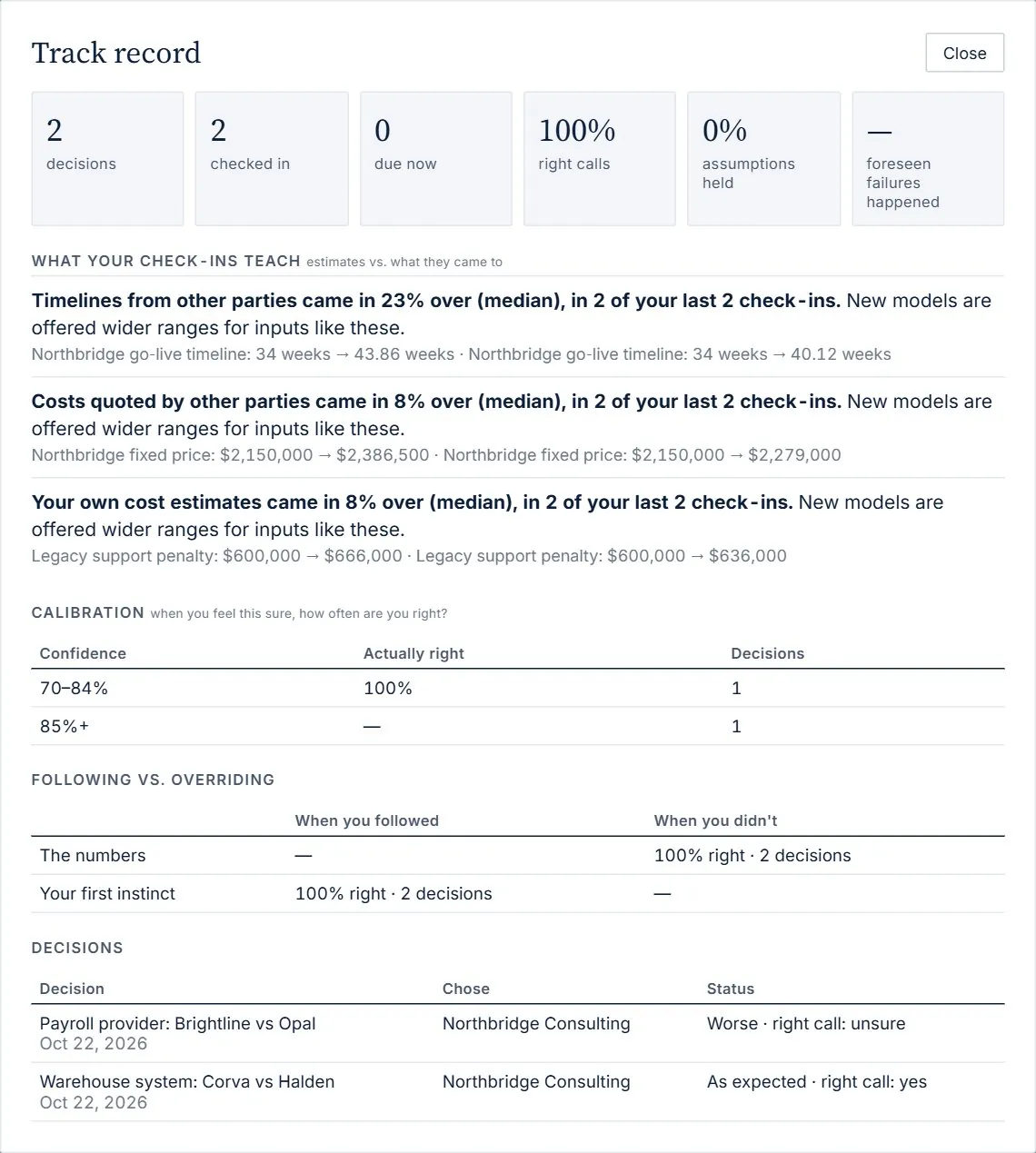
In your next decisions, inputs of the same kind are offered wider ranges, with that lesson as the reason:
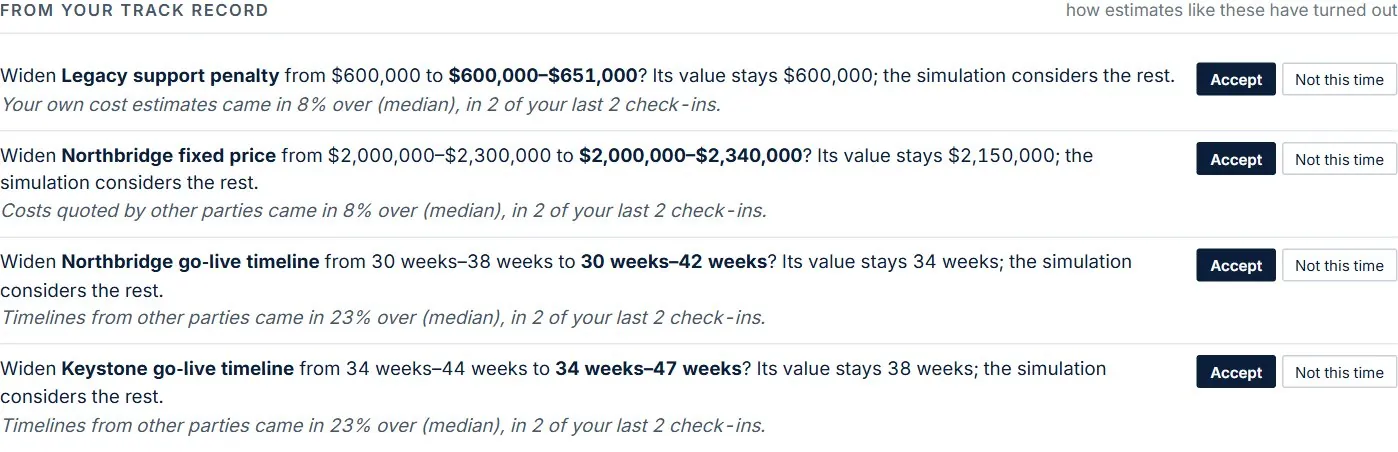
- A lesson needs at least two check-ins of that kind, and a gap of at least 5%.
- The value itself stays the same; only its range widens, so the simulation considers the overrun.
- Accept is a new version you can undo; Not this time sets it aside for this decision. Limits you set (a budget cap, a deadline) are never widened.
Sign-off and seal
For a decision you'll have to defend, Sign-off & seal makes it defensible: who approved it, on what numbers, with what interests declared.
- Name the people. Add each person with their role: proposer, reviewer, approver, evaluator or observer. New email addresses are invited to sign in.
- Declare interests. Everyone except observers declares their interests in the options or the parties (or that there are none). You rule on each one: recused, managed or immaterial.
- Propose it. Propose for sign-off freezes the choice, the reasoning and the numbers. Any later change to the decision voids the proposal and every signature, so signatures only ever cover what was signed.
- Sign. Each person approves, objects or abstains, with an optional note.
- Seal it. Once every approver has approved and every interest has a ruling, Seal it makes the decision read-only.
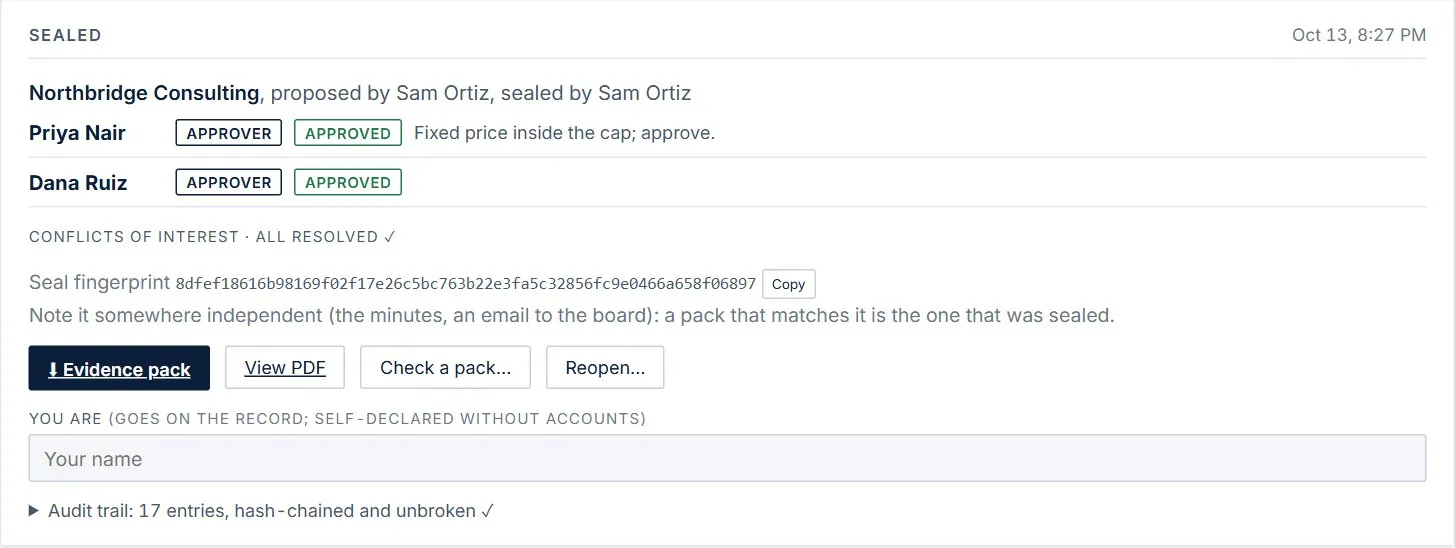
- Evidence pack: a download with everything an auditor needs. Check a pack… verifies one: the files, the trail, the seal, and the numbers recomputed from scratch.
- Note the seal fingerprint somewhere independent (the minutes, an email): a pack that matches it is the one that was sealed.
- A sealed decision can't be changed. Make an editable copy to experiment, or Reopen… with a reason; the old seal stays on the record.
Documents for others
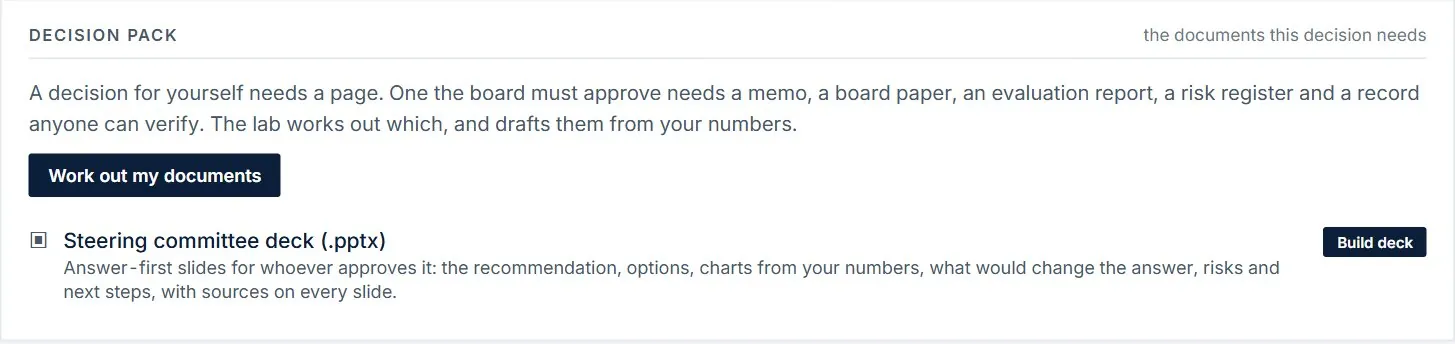
Work out my documents works out what this decision needs from who decides and who has to be convinced: a decision for yourself needs a page; one a board must approve needs a memo, a board paper, an evaluation report, a risk register and a verifiable record. The Lab drafts each from your numbers.
- Available documents include a decision brief, options comparison, decision memo, risk register, claims and assumptions log, evaluation report, financial analysis, board paper, implementation plan and decision record.
- Tables are built by code, and every figure in the text is checked against your inputs; any figure that can't be traced is flagged.
- Edit any document in place, download it as Word, or ↓ Download all. When your decision changes, documents are marked out of date; ↻ Redraft out of date never overwrites one you've edited.
- Build deck makes an answer-first PowerPoint for whoever approves it, with charts from your numbers and sources on every slide.
Accounts, teams and sharing
- Signing in. Use your password, or have a one-time sign-in link emailed to you (it works once, for 15 minutes). The name you give is the one that appears on sign-offs and the audit trail.
- Your account page. Change your name or password, see where you're signed in and sign out of other devices.
- Teams. Start a team and add people as admin, member or viewer. In a decision, Share with a team gives the team read-only access. Shared decisions are marked (shared with you).
- People named on a sign-off can open that decision to declare interests and sign, but not change it.
Feedback and the open beta
Xybernetex is in open beta: features change often, and what you tell us decides what gets built next.
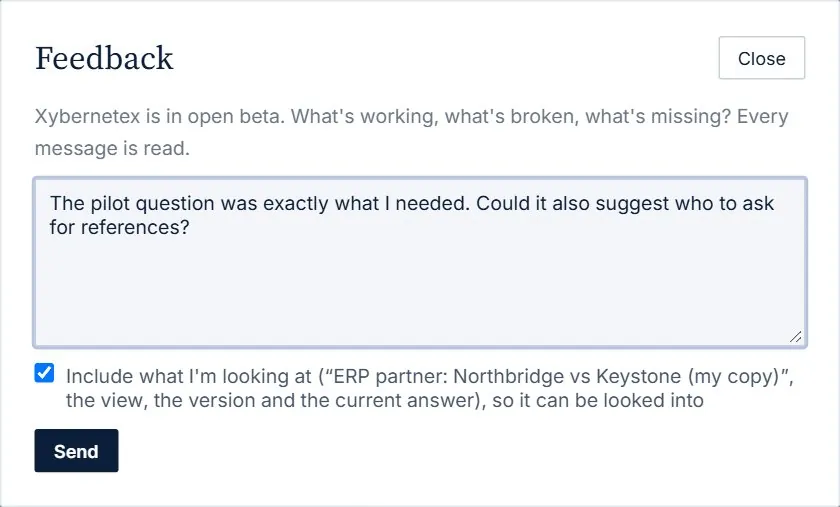
- Feedback at the top of the Lab opens a short form. Unless you untick it, it includes what you're looking at (the decision, the view, its version and the current answer), so it can be looked into. Every message is read.
- 👍 / 👎 appear on what the AI writes: answers and proposals in the work box, questions in Discuss, and the analysts' recommendation. One click records it; Add a note says more.
AI, privacy and limits
| The AI does | Code does |
|---|---|
| Reads your writing and documents; drafts structure, formulas and 0–10 judgement scores; asks questions in Discuss; interprets requests in the work box; writes search queries; drafts documents and the four analysts' reviews. | All arithmetic and the 2,000-world simulation; checking every quote; choosing what's worth discussing or researching; checking hard limits; recording, versioning, undo; the lock, signatures, seal and verification; the lessons from your check-ins. |
- No AI is used when you change numbers, try what-ifs, compare scenarios, view the map, verify a record, browse Home, answer the questions in the live decision, or use meeting mode. Ask the vendor uses one AI call to word the email.
- Under your writing, AI on this decision: N calls · $x shows what the AI has done on this decision; click it for a breakdown.
- Each person has a daily AI allowance. If you reach it, the AI features rest until midnight UTC; everything else keeps working.
- What you write and attach is processed by our AI provider to produce results, and web research queries go to our search provider. We don't use your content to train AI models. See the Privacy Policy for details.
Questions and answers
Why does the leader show a percentage instead of a single answer?
Most of the numbers behind a decision are uncertain. The percentage is the share of 2,000 plausible versions of the future in which that option comes out best. 95% means the choice is robust to what you don't know; 55% means it's close, and the Worth checking section tells you which unknown to pin down.
The numbers favour one option but the live decision shows another. Why?
“By the numbers” uses your best estimates. The live decision includes uncertainty: an option that's cheaper on average can still break a hard limit in many plausible worlds. Options that break a limit more often than your limit-risk setting (5% by default) are screened out first.
A number the AI found is wrong. How do I fix it?
Edit it directly under Other inputs (a what-if), then Keep in the model. Or use discuss next to the number to talk it through, or tell the work box (“set the Keystone rate to $179”).
Will rebuilding the model lose my changes?
No. Rebuilding keeps your weights, what you settled in Discuss, values you kept from scenarios, inputs you added or took out, and formula edits where they still fit. recalculate from scratch is the one that starts over, and it asks first.
How do I undo something?
Use Undo in the note that appears after a change, or ↶ Undo in How the answer moved, which steps back one change at a time.
The analysts' report says it's out of date.
It was based on an earlier version of the model. Use Refresh the review (quick) to bring it up to date in a few minutes. If the options themselves changed, it needs a full Stress it again.
Can I change a sealed decision?
Not directly: that's the point of sealing. Make an editable copy to explore, or reopen it with a reason (the original seal stays on the record).
It says “can't tell”. What does that mean?
A hard limit needs a figure that one of the options doesn't have yet (a price, a timeline), so the Lab can't check it. Rather than guess, it doesn't choose that option until the figure exists. Get it, add it as an input, and the comparison is settled. See When a figure is missing.
Where did my question from the work box go after I changed a number?
It's still there, labelled Answered before your last change: it was about the numbers as they were. Use Ask again for an answer about the numbers now.
Two options are shown as a tie.
They come out exactly level, so the numbers don't pick between them. Decide on something the model doesn't count, or add what would separate them (a criterion, a cost, a limit).
Do I need to use every tool?
No. For a personal decision, writing it out and reading the live decision may be all you need. The Lab shows more tools as they become useful; the Next step always points to the single most useful one.
Glossary
| Term | Meaning |
|---|---|
| Plausible worlds | The 2,000 versions of the future the simulation tries, each drawing every uncertain number from its range. |
| Hard limit | A line an option mustn't cross (a budget cap, a deadline). |
| Can't tell | A hard limit that can't be checked for an option because a figure is missing. Never treated as a pass. |
| Lean | The option you'd pick today. Recorded so you can see whether following your instinct or the analysis works out better. |
| Claim | A figure from another party, treated as optimistic until verified. |
| What-if / scenario | Values you're trying without changing the model. Keep, compare or discard them. |
| Version | The model after each change. Reports and documents say which version they were based on. |
| Value of information | How much pinning down an uncertain number could improve the decision. Zero means it's not worth researching. |
| Regret | How far behind the best option a choice could fall, across the analysts' worldviews. |
| Pre-mortem | Imagining the choice failed, to find the likeliest reasons in advance. |
| Seal | Making a signed-off decision read-only, with a fingerprint anyone can check. |
| Evidence pack | Everything behind a decision, packaged for an auditor to verify. |
Still stuck? Email chris@xybernetex.com.